Let's see if we can get this resolved for you! Please use the steps below to self troubleshoot before submitting a ticket.
Click on the Browser you are using:
- Mozilla Firefox
- Google Chrome for Windows / Internet Explorer / Microsoft Edge / Opera
Mozilla Firefox browser
Incorrect email and password Message
Let's first go through the steps of resetting your password. Click 'Forgot Password' and follow the prompts to enter your email in and receive the link to reset your password sent via email.
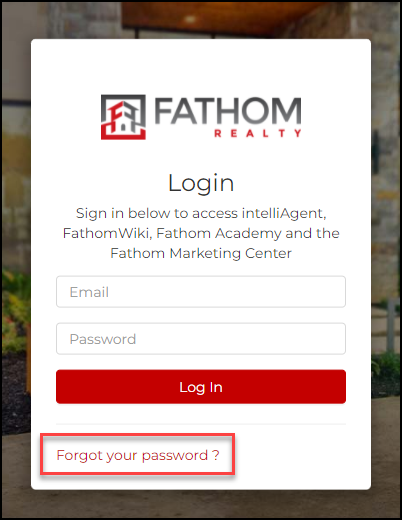
If this does not resolve the issue please try the following steps to clear your cache:
Clear Cookies and Cache – On MAC: If you have IntelliAgent bookmarked please remove the bookmark before following the below steps.
1. Click on Safari and then on Preferences.
2. Select Privacy and then click Manage Website Data.
3. Select Remove All and then in the small popup, select Remove Now.
4. In the Preferences window, click the Advanced tab and make sure the checkbox next to "Show Develop menu in menu bar" is selected.
5. Select Develop in the menu bar on the top of the screen and click Empty Caches.
"Your Connection Is Not Private" screen
Go into an Incognito or Private window and try login using the steps below.
Use Private Browsing in Safari on Mac
In the Safari app on your Mac, choose File > New Private Window, or switch to a Safari window that's already using Private Browsing. A window that's using Private Browsing has a dark Smart Search field with white text.
If you are able to login through the privacy window then we can identify that this is a browser caching issue. Please use the steps below to clear your cache, re-open a new browser and login again.
Clear Cookies and Cache – On MAC: If you have IntelliAgent bookmarked please remove the bookmark before following the below steps.
1. Click on Safari and then on Preferences.
2. Select Privacy and then click Manage Website Data.
3. Select Remove All and then in the small popup, selection Remove Now.
4. In the Preferences window, click the Advanced tab and make sure the checkbox next to "Show Develop menu in menu bar" is selected.
5. Select Develop in the menu bar on the top of the screen and click Empty Caches.
6. Re-open a new browser and try to login again using https://fathom.intelliagent.com/
If the above steps did not work to login, please continue with submitting the support ticket. Please include all the steps you have taken to try to resolve as well as any screenshots and/or detailed description of what you are experiencing. This helps in our troubleshooting of any login issues.
Google Chrome for Windows / Internet Explorer / Microsoft Edge
Incorrect Email and Password Message
Let's first go through the steps of resetting your password. Click 'Forgot Password' and follow the prompts to enter your email in and receive the link to reset your password sent via email.
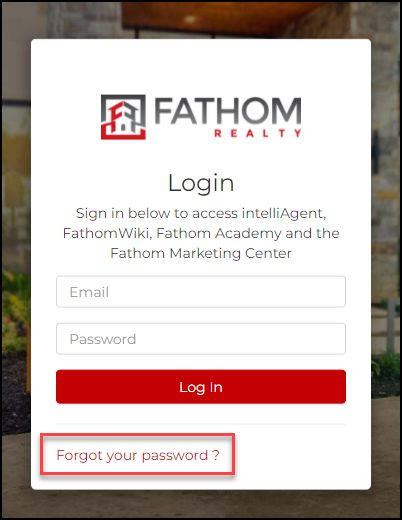
If this does not resolve the issue please try the following steps to clear your cache:
Clear Cookies and Cache - On Chrome: If you have IntelliAgent bookmarked please remove the bookmark before following the below steps.
1. On your computer, open Chrome.
2. At the top right, click More (three dots)
3. Click “More tools” Clear browsing data.
4. At the top, choose a time range. To delete everything, select All time.
5. Next to "Cookies and other site data" and "Cached images and files," check the boxes.
6. Click Clear data.
"Your Connection is Not Private" screen
Use the steps below to clear the SSL cache.
Clear SSL State 'Microsoft Internet Explorer'
To clear the SSL state in Internet Explorer, follow these steps:
1. If you are using Internet Explorer 8, on the Tools menu, click Internet Options.
2. If you are using Internet Explorer 9 or 10, click the Internet Explorer - Settings icon icon, and then click 3. Internet options.
4. Click the Content tab.
5. Click Clear SSL state, and then click OK.
Re-open a new browser and try to login again using https://fathom.intelliagent.com/
Clear the SSL State 'Edge'
1. Open the Start menu.
2. Search for and open Internet Options.
3. In the dialog box that appears, select the Content tab.
4. Click Clear SSL State.
Re-open a new browser and try to login again using https://fathom.intelliagent.com/
Clear SSL State 'Chrome'
To clear the SSL state in Chrome, follow these steps:
1. Click the Google Chrome - Settings icon (Settings) icon, and then click Settings.
2. Click Show advanced settings.
3. Under Network, click Change proxy settings. The Internet Properties dialog box appears.
4. Click the Content tab.
5. Click Clear SSL state, and then click OK.
Re-open a new browser and try to login again using https://fathom.intelliagent.com/
Clear SSL State 'Opera'
To clear the SSL state in Opera, follow these steps:
1. On the Tools menu, click Delete Private Data.
2. To clear the cache, select the Delete entire cache check box.
3. Click Delete.
Re-open a new browser and try to login again using https://fathom.intelliagent.com/
Did Clearing the SSL Not Work?
After using the steps above to clear the SSL certification based upon your browser used, if you are still getting 'Your Connection is Not Private' screen, the next step is to go into an Incognito window and try login using the steps below.
Login using Incognito: To open an Incognito Window in Chrome, open the Chrome Menu in the upper-right-hand corner of the browser window and select 'New Incognito Window'.
If you are able to login through incognito then we can identify that this is a browser caching issue. Please use the steps below to clear your cache, re-open a new browser and login again.
Clear Cookies and Cache - On Chrome: If you have IntelliAgent bookmarked please remove the bookmark before following the below steps.
1. On your computer, open Chrome.
2. At the top right, click More (three dots)
3. Click “More tools” Clear browsing data.
4. At the top, choose a time range. To delete everything, select All time.
5. Next to "Cookies and other site data" and "Cached images and files," check the boxes.
6. Click Clear data.
7. Re-open a new browser and try to login again using https://fathom.intelliagent.com/
If the above steps did not work to login, please continue with submitting the support ticket. Please include all the steps you have taken to try to resolve as well as any screenshots and/or detailed description of what you are experiencing. This helps in our troubleshooting of any login issues.