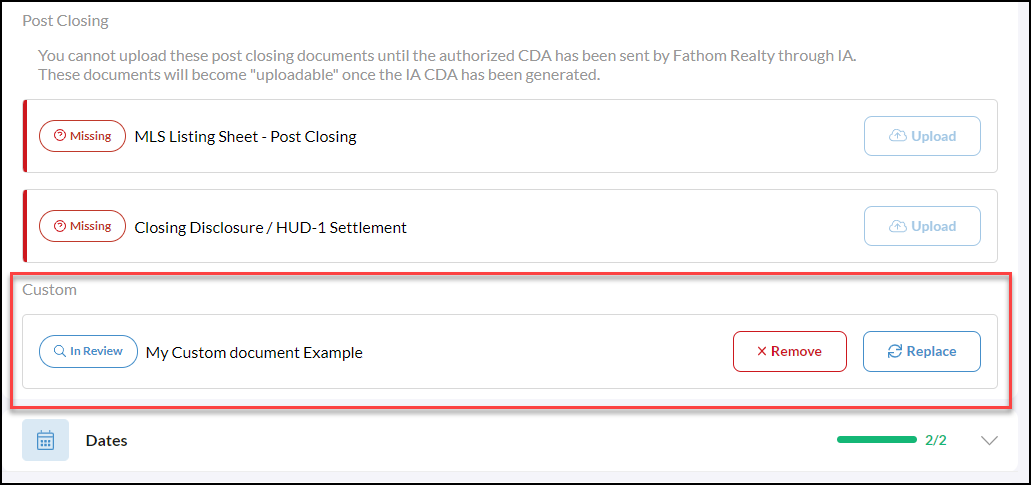
From your transaction, scroll down to Documents and click the down arrow to the right to open the 'Documents' Section.
To add custom documents or multiple documents at one-time click +Add Document

In the 'Upload Documents' popup, you can click Browse Files or simply Drag n Drop from your folder.
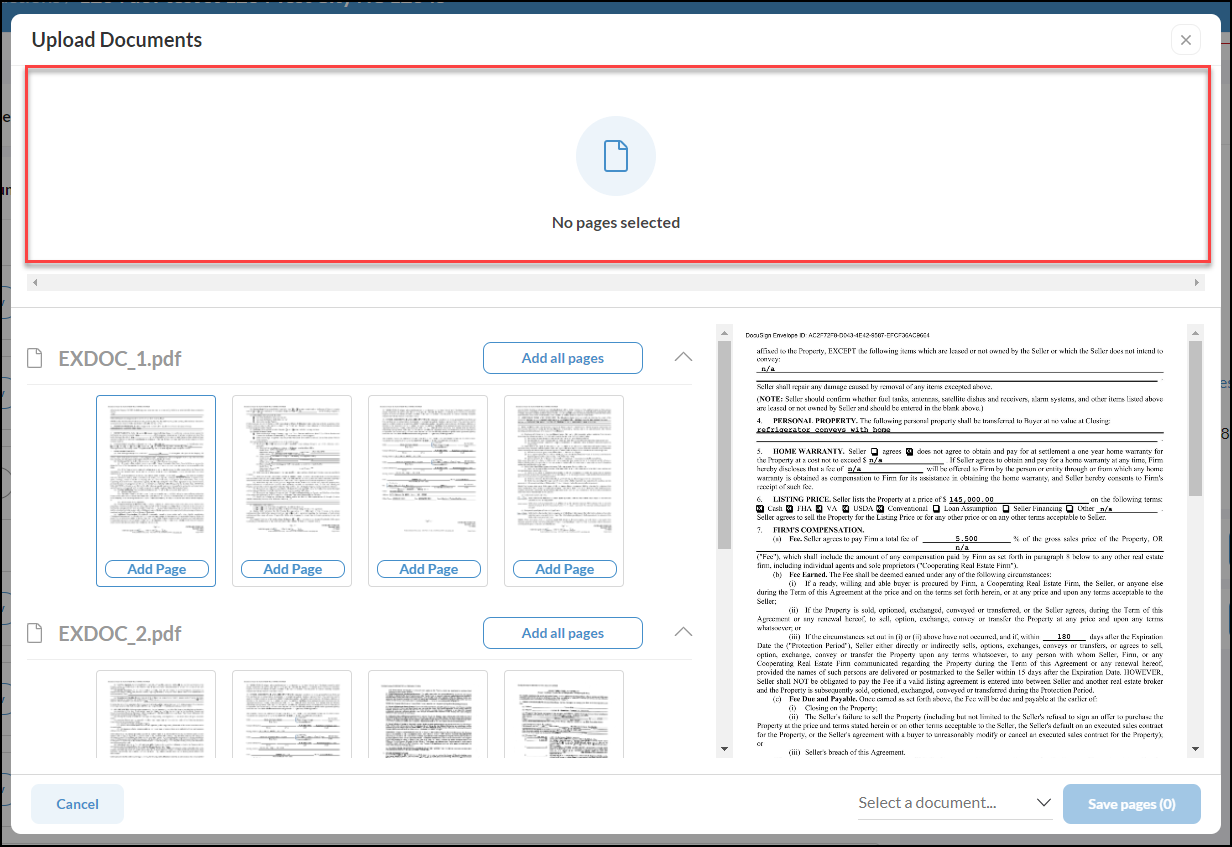
Adding Multiple Documents
Each document uploaded will be displayed with each of its pages broken up, as shown in the screenshot below. Once you start selecting pages they will appear in the top open area under Upload Documents.
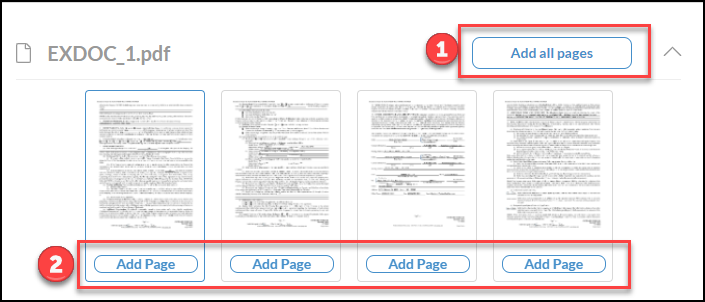
The next step is to either select 'Add All Pages' or you can click on each thumbnail page individually for each uploaded document.
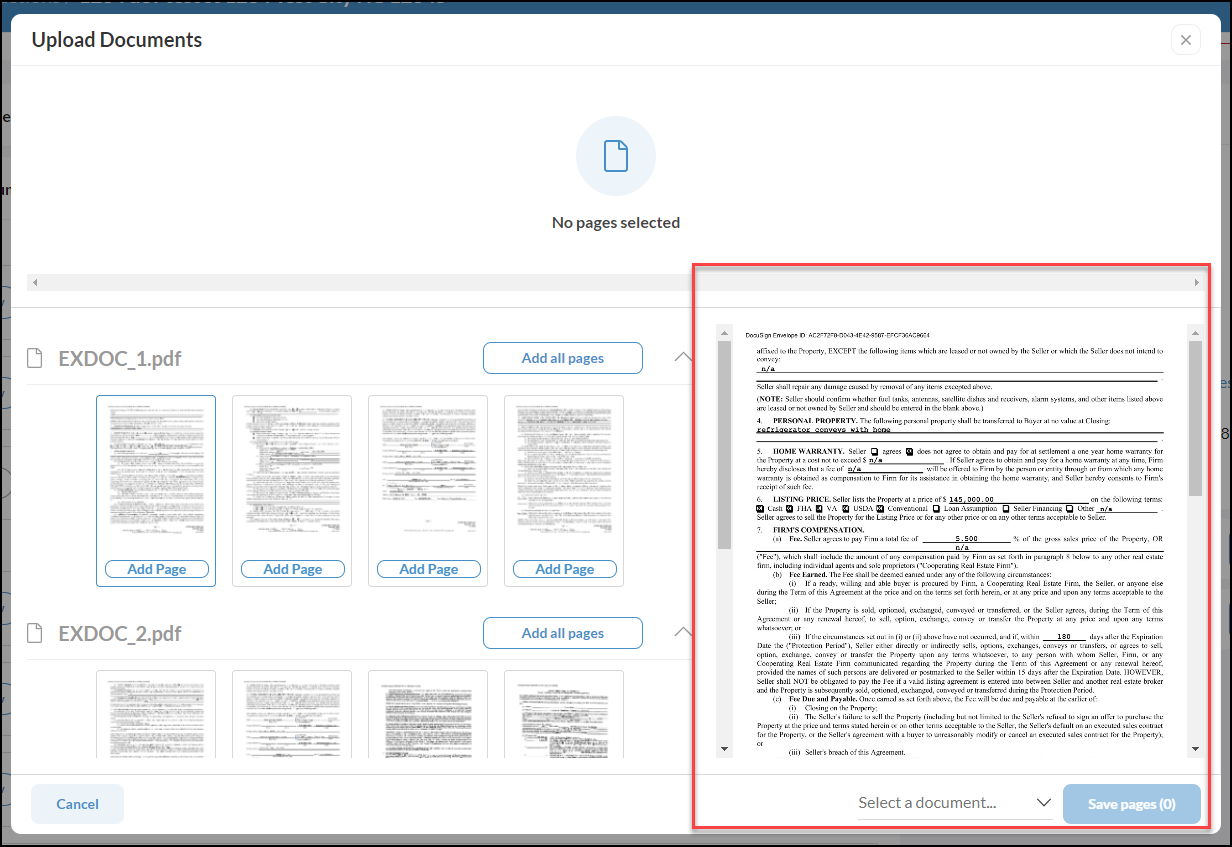
Use the 'Page Preview' to the right of the documents to double-check the information and verify the page(s) you wish to upload.
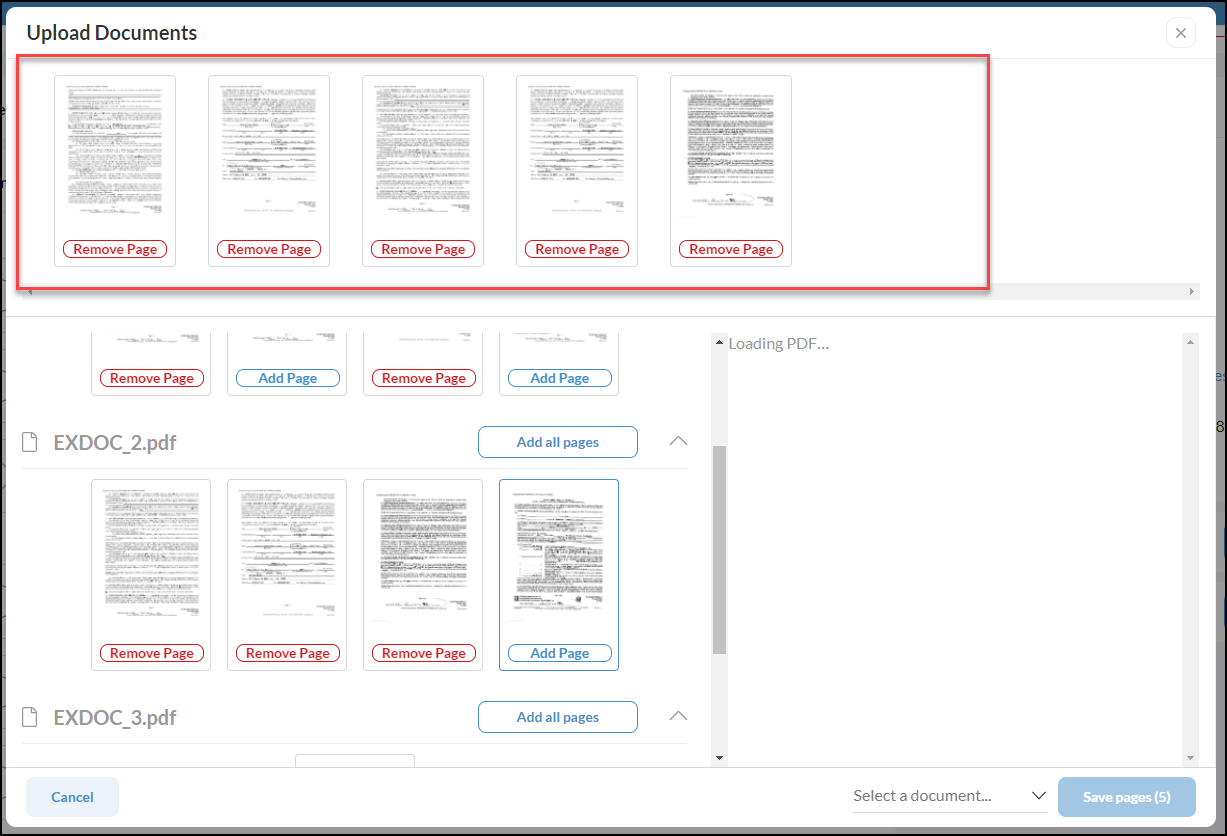
Once you have selected the pages you wish to upload you will see the pages appear in the top area.

Next, use the Select a Document dropdown to choose which Document option you would like the selected pages uploaded to.
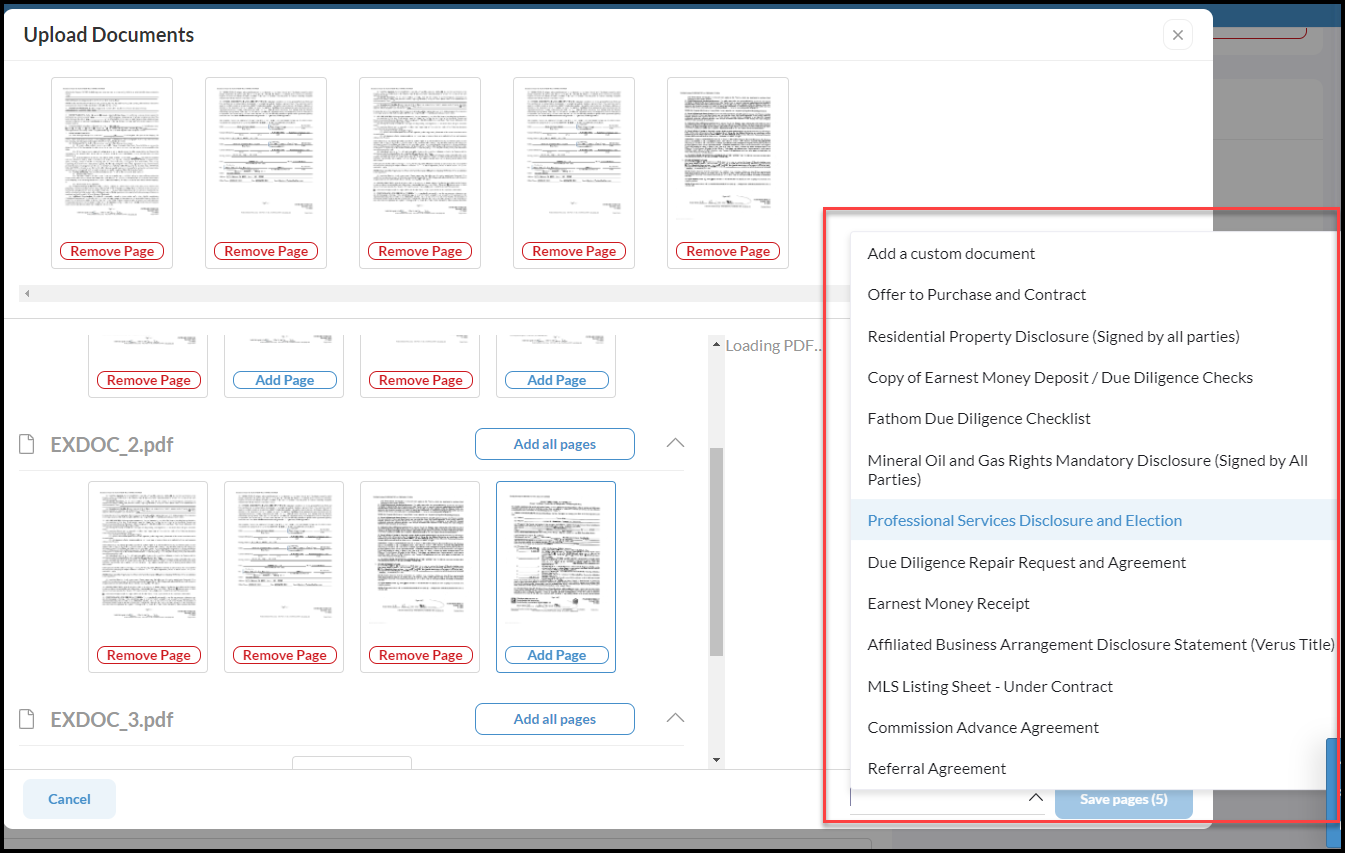
Once you click Select a Document the options will appear to choose from.
Adding a Custom Document
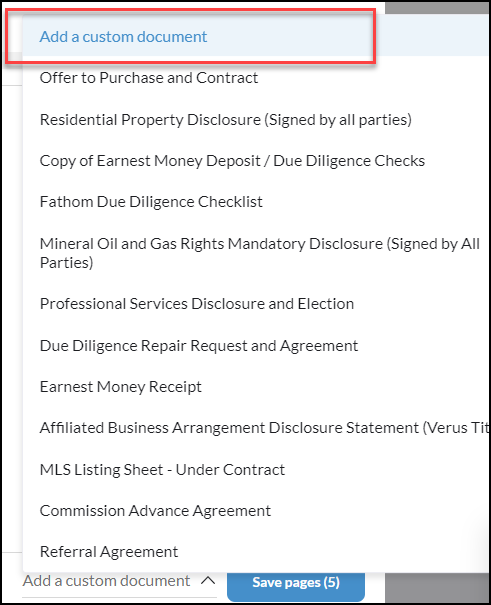
If you are adding a Custom Document, choose to Add a Custom Document from the Select a Document List, shown above.
Clicking Add a Custom Document will bring up a pop-up with a list of additional options to choose from. If you are not seeing the document needed, you can then click Add a Custom Document again from this list.
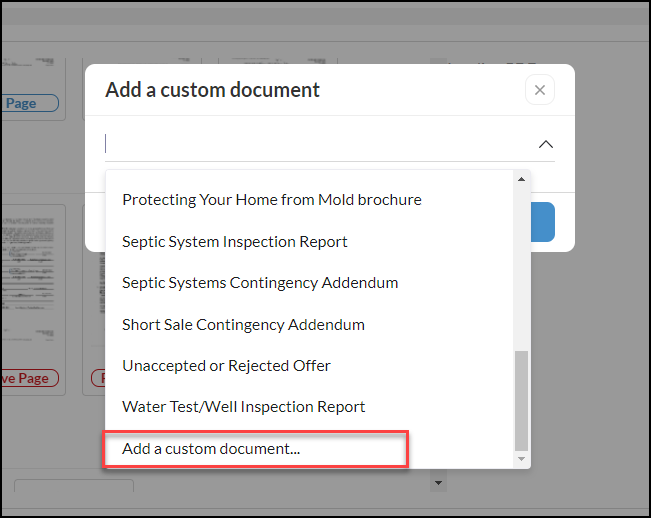
Next, complete creating the Custom Document by entering your custom document name.
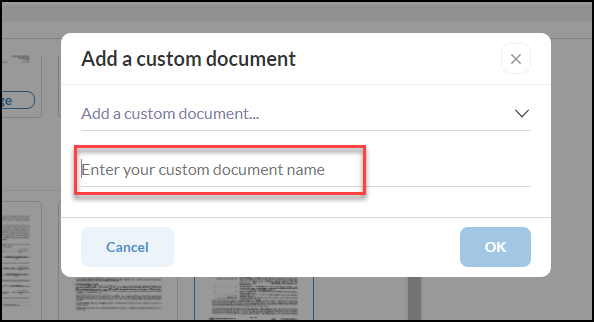
Click Ok to complete.
You will be able to find your custom document under the 'Documents' section under the label 'Custom'