Connect your applications together so everything can be used in unison through your CRM.
This section will walk through how to integrate your CRM with a Facebook Business Page.
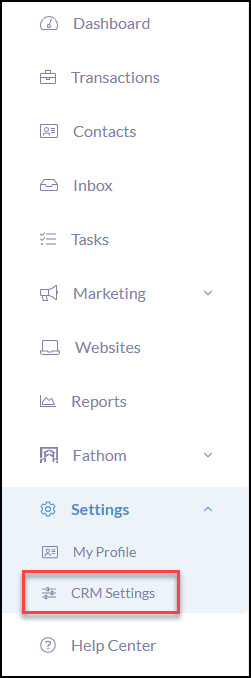
Click Settings from the iA Menu
Click, CRM Settings
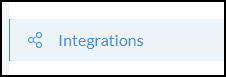
Click Integrations
From Integrations, under Available Integrations, Facebook
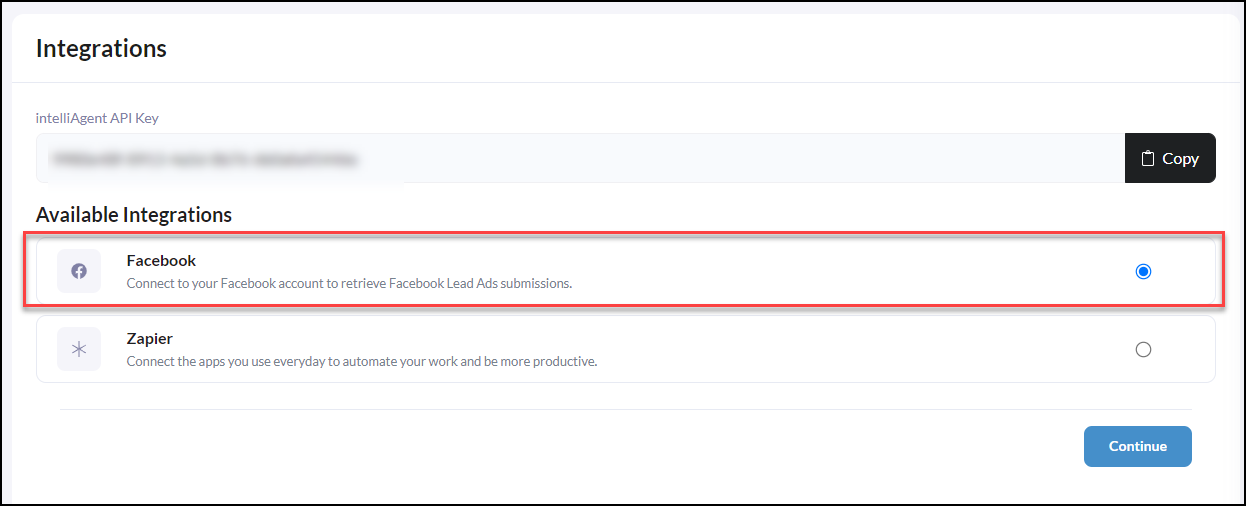
Click Facebook from available integrations
Then click Continue
A popup will appear to prompt a login to your Facebook Account and all pages associated.
Note, the Lead Ads App will receive your name and profile picture. This doesn't let Lead Ads App post to Facebook without your permission.
After you have logged in, select the Facebook Business Page you want to use with the Lead Ads App
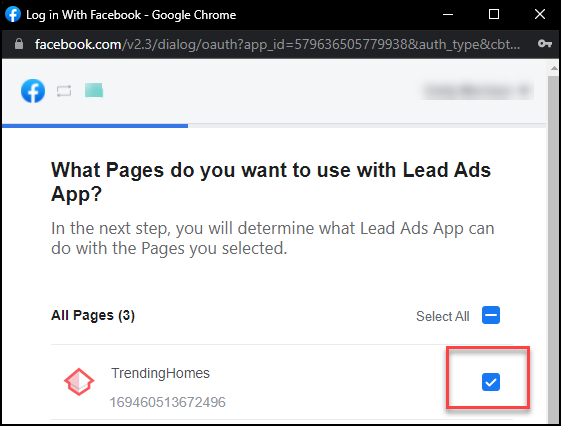
Once you have confirmed the Facebook Business page, go through to confirm the options that Leads Ads App is allowed to do, these options default to YES. Reference the screenshot below on what options.
Note, as it states, Lead Ads App may not work properly if you turn off these options.
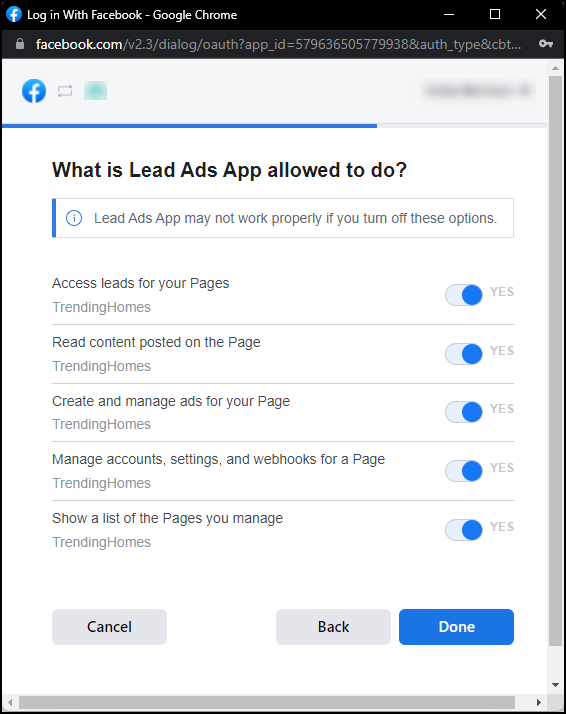
Click Done!
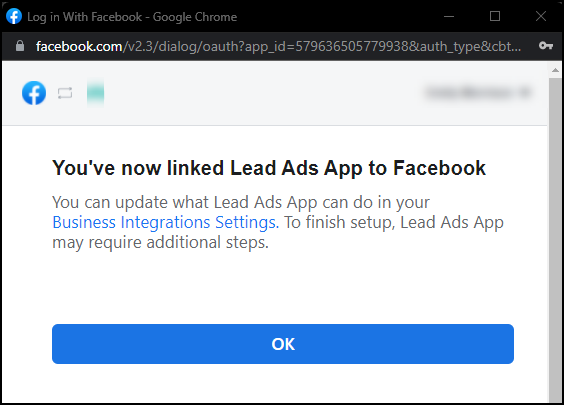
Now let's set up your Facebook Lead Providers to capture leads.