If you have not integrated a Facebook Business Page to your CRM Click Here
Once your Facebook Business Page has been integrated the next thing to do is configure your Facebook Lead Forms, set up lead routing (for teams only), trigger campaigns for new leads, and set up auto-tagging.
- Facebook Form Lead Routing
- Trigger a Campaign for Facebook Lead Follow Up
- Tagging your Facebook Leads
- Lead Alert Email BCC and SMS Options
To get started, click Settings in the iA menu
Click CRM Settings
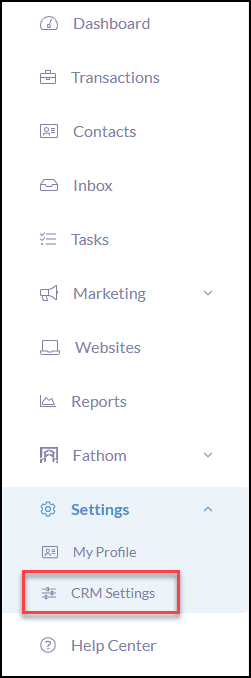
Then, click Lead Providers
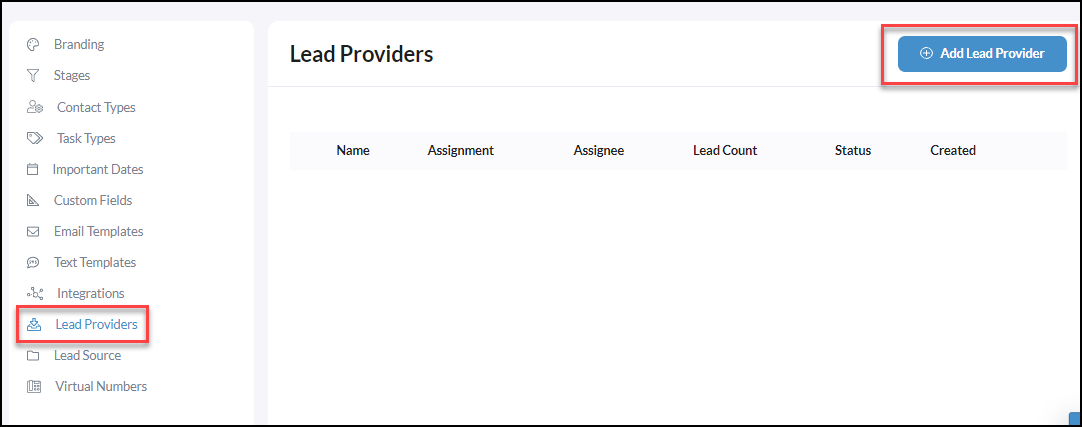
From the Configure Lead Provider page, click Facebook
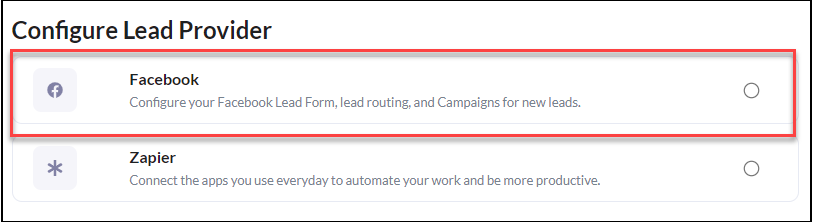
Then click Continue
Next, you will fill out the 'Lead Provider Details' with the step-by-step guidance below.
Create a Lead Source Name by just typing in what you would like to name this lead source. When a lead comes in it will display this name for the lead source on contacts created which will allow you to easily view how many leads are coming from each.

Facebook Lead Form Lead Routing
|
Note, If you are on a team, Lead Routing will be available to Directly Assign a lead to a team member or use the First to Claim or Round Robin options. This must be setup within your CRM Settings under Lead Routing. Are you on a team and need to set up group lead routing? Click Here to get started! |
Next, under FB Page, select your Facebook Business Page that you are wanting to pull in the FB Forms from.

Then from the FB Form dropdown select the appropriate FB Form of the leads you are trying to capture.
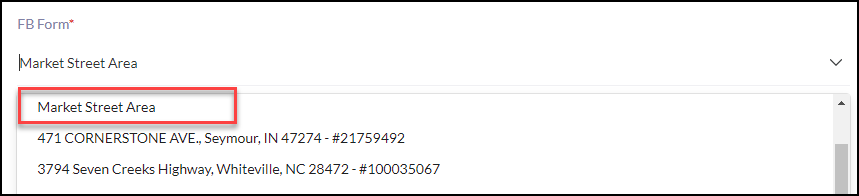
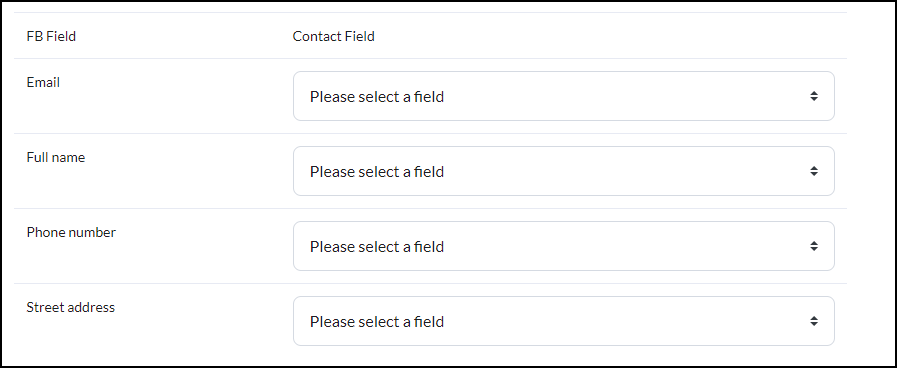
Once you have selected your FB Form the next step is to map the Contact Fields you wish to bring into the CRM.
Trigger a Campaign for Facebook Lead Follow Up
Next, select a Trigger Campaign that will start when a new lead is created.
Need to create a Campaign for your Facebook leads? Click Here to learn how!

Tagging Your Facebook Leads
Next, Tag your Facebook leads! Easily start typing the tag name you wish to use and click Create "Tag Name" when it drops down below to create. Once a tag is created it will be available to use again.


Lead Alert Email and Text Options
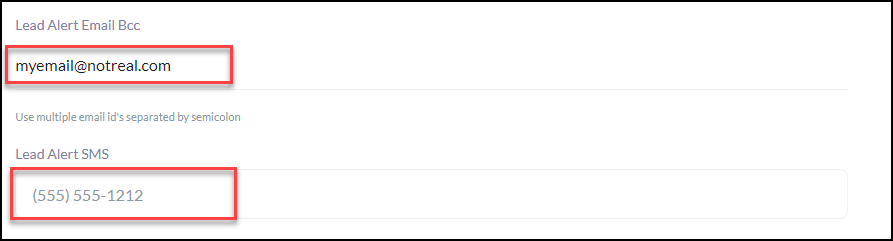
Optional: Lead Alert Email BCC: Use multiple email id's separated by semicolon
Optional: Lead Alert SMS: Add the mobile number to receive lead alert text messages
Click Submit when finished.