Connect your applications together so everything can be used in unison through your CRM.
**Please note, at this time the intelliAgent - CRM Zap is only able to bring contacts into intelliAgent and is not set up to connect contacts outward to other platforms.
-------------------------------------------------------------------------------------------------------------
IMPORTANT** Before you continue these steps it is necessary to first Configure your Zapier lead provider for new leads
Once you have configured your Zapier Lead Provider(s), please continue following the steps below to help walk through how to integrate your intelliAgent CRM with Zapier.
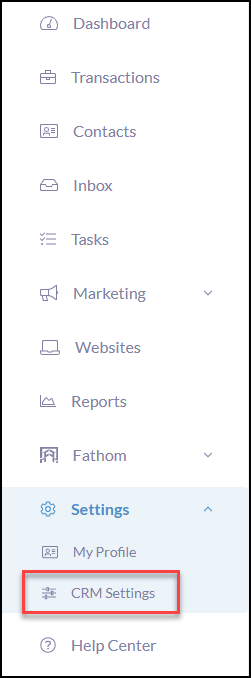
Click Settings from the iA Menu
Click, CRM Settings
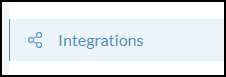
Click Integrations
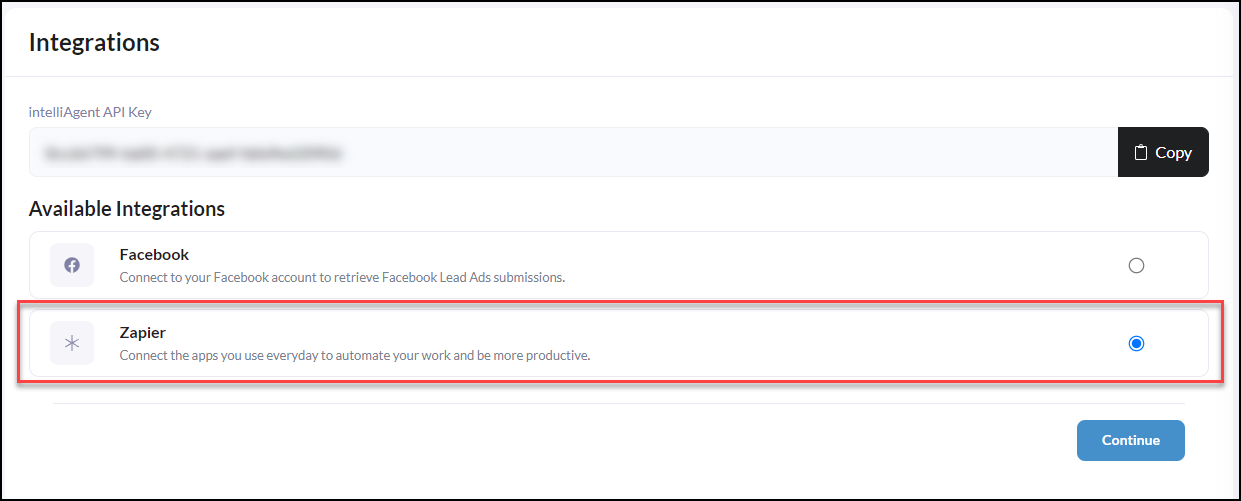
Next, click Zapier
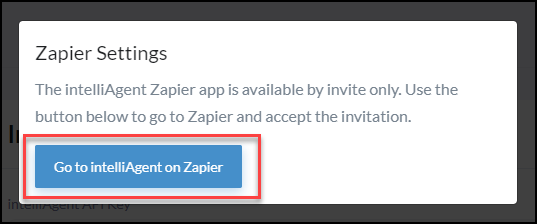
Continue to follow the prompts by clicking Go to intelliAgent on Zapier
Log in to Zapier with your email
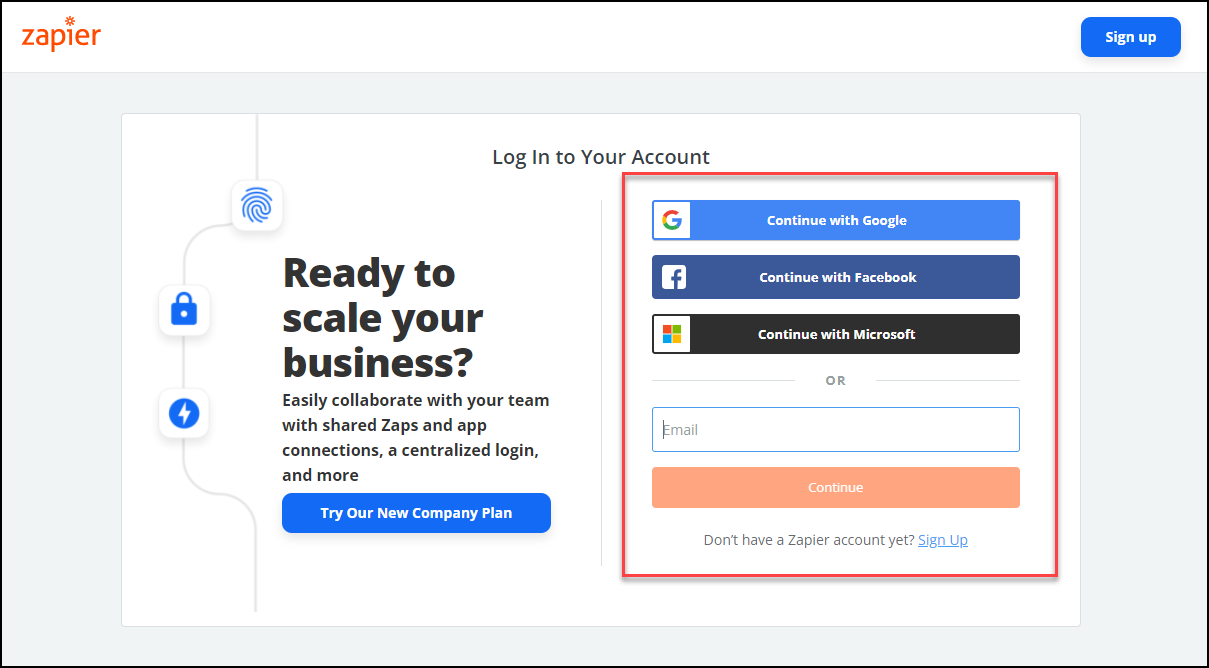
Next, click the button Accept Invite to Build a Zap!

Next, click Create Zap

From the 1. Trigger, search for the lead source app i.e. Zillow Tech Connect
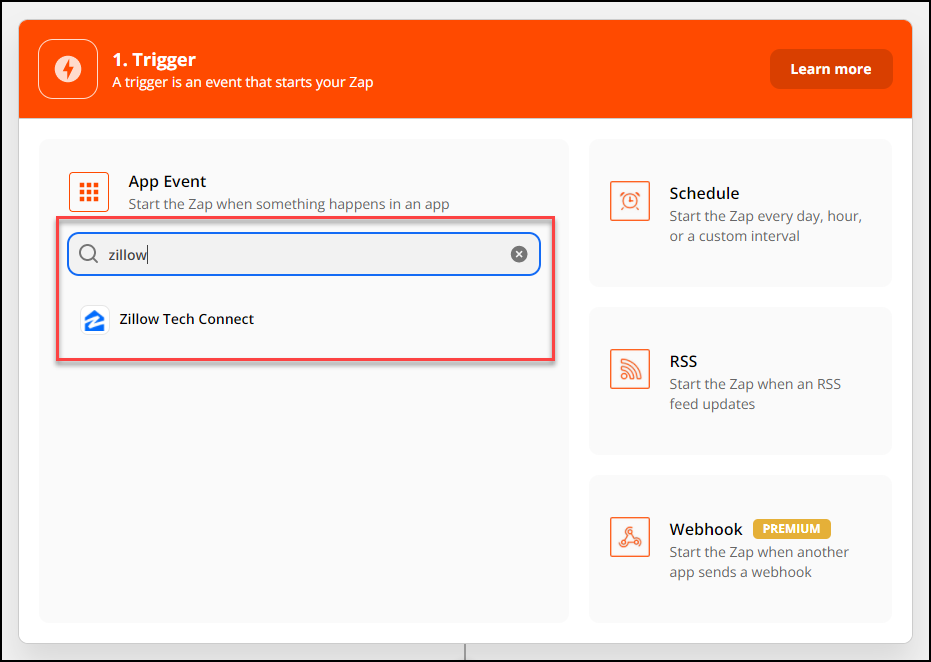
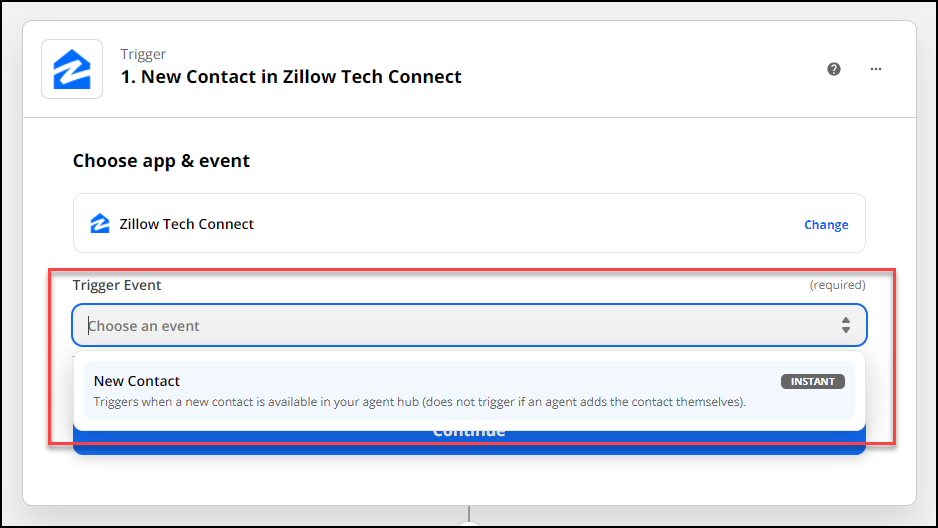
Trigger Step 1: New Contact in Zillow Tech Connect - 'Choose App & Event'
From the 'Trigger Event' click New Contact (this is what starts the Zap)
Click Continue
Trigger Step 1: Set up webhook - Zapier email will automatically populate.
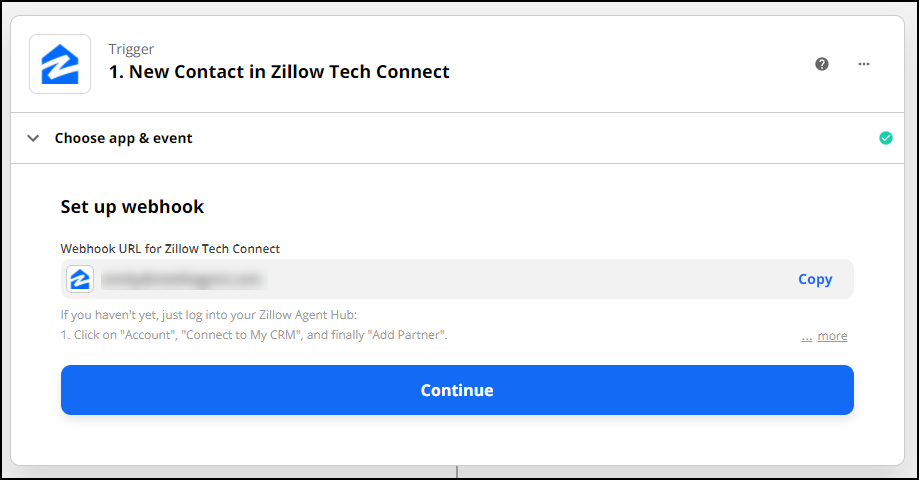
If you haven't yet, just log into your Zillow Agent Hub:
- Click on "Account", "Connect to My CRM", and finally "Add Partner".
- Select Zapier and paste your Zapier login email (below).
- Click save!
Note: you only need to do this once! Multiple zaps work with a single connection.
Click Continue
Trigger Step 1: Test Trigger
Click the blue button 'Test Trigger'

The Test Trigger will find a test request
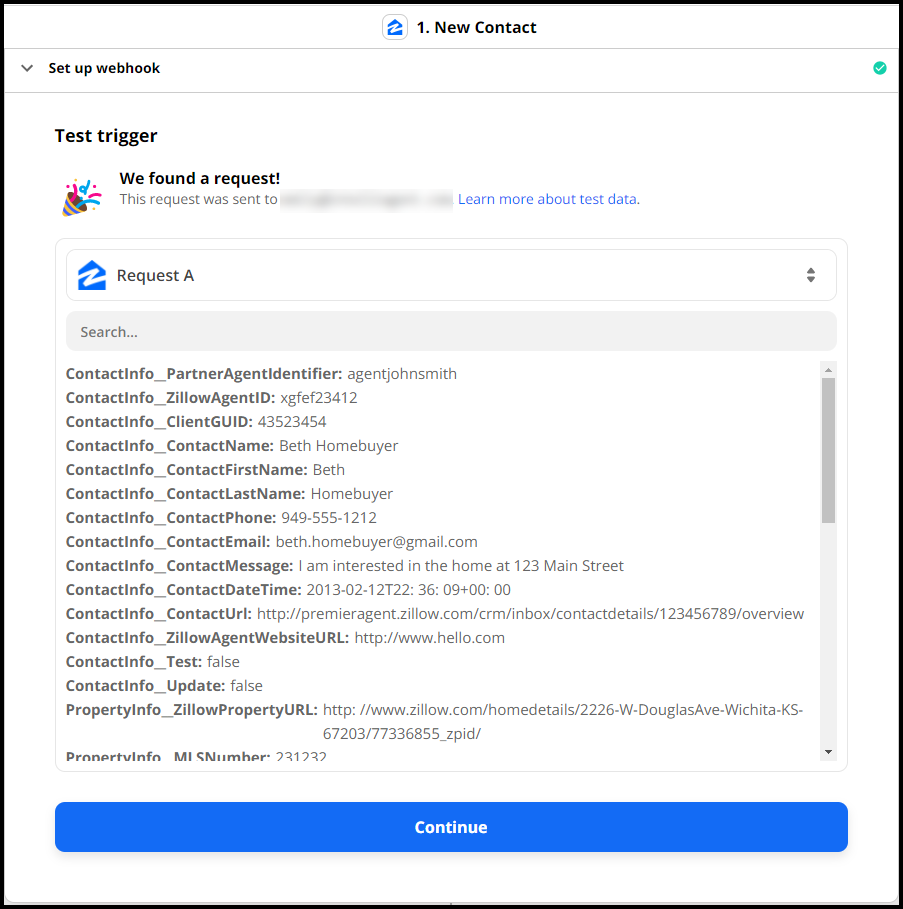
Click Continue
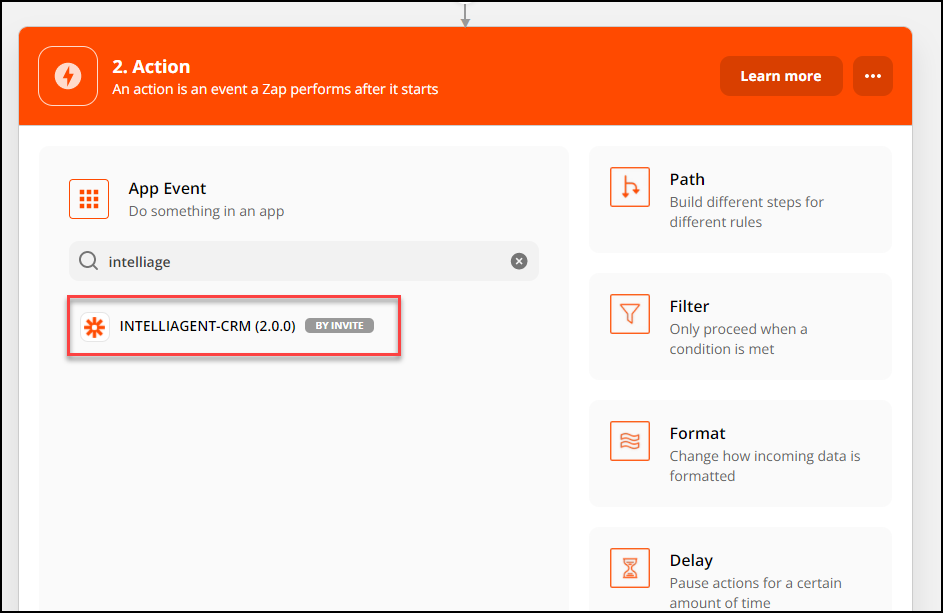
From the 2. Action - search for intelliAgent and select INTELLIAGENT-CRM (2.0.0)
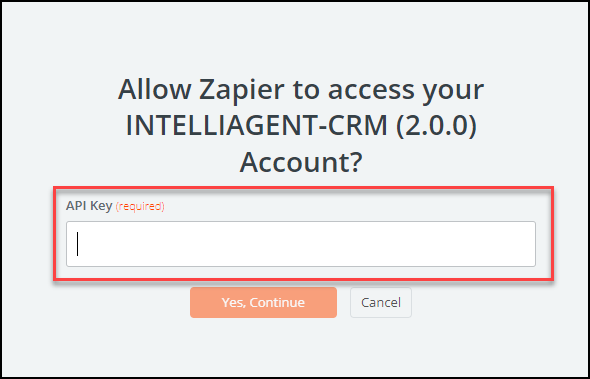
Next, a popup will appear to allow Zapier to access your INTELLIAGENT-CRM (2.0.0) account.
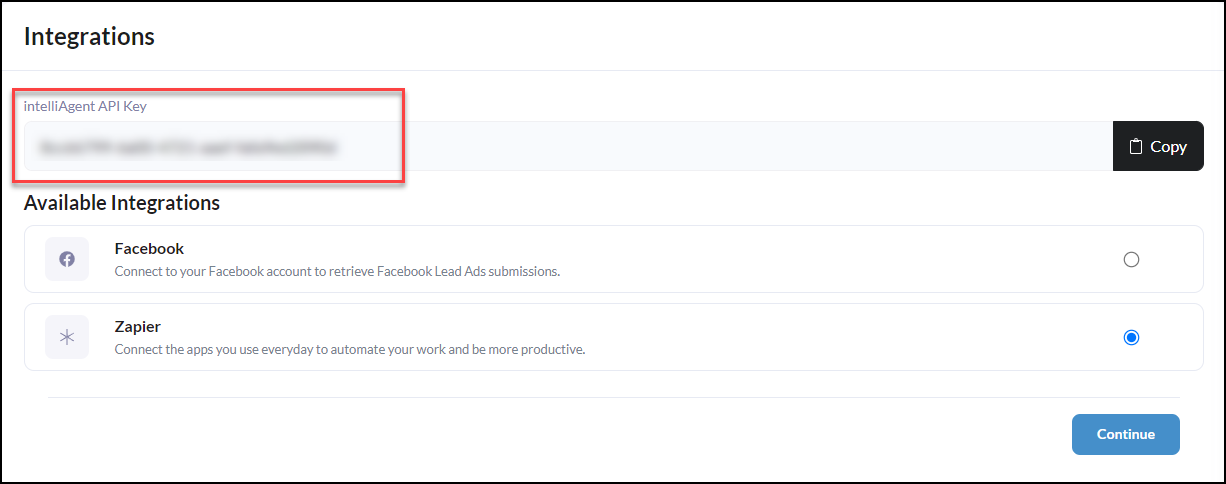
To obtain the API Key go back to intelliAgent and click on integrations to 'Copy' the intelliAgent API Key
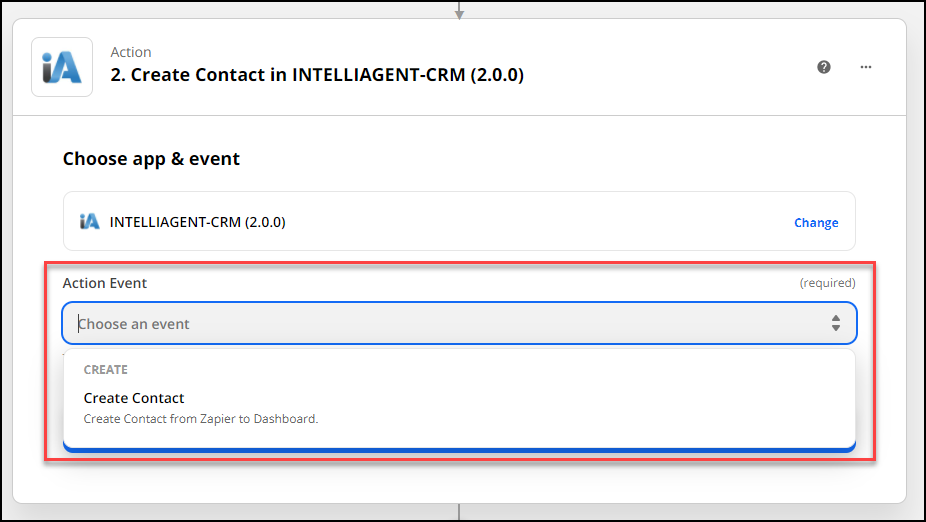
From the 2. Action - Create Contact in INTELLIAGENT-CRM (2.0.0) - 'Choose App & Event'
From the Action Event, select 'Create Contact'
Click Continue
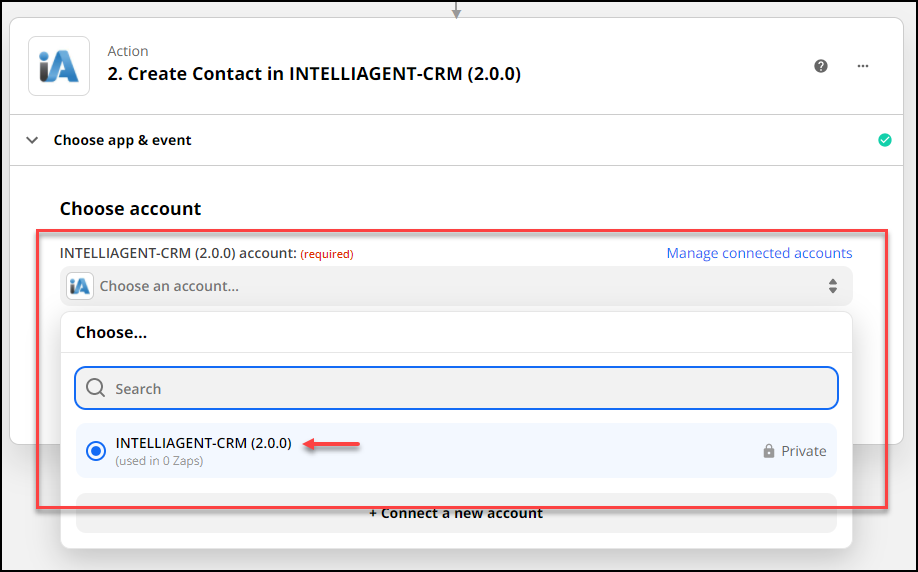
From the 2. Action - Create Contact in INTELLIAGENT-CRM (2.0.0) - 'Set up action'
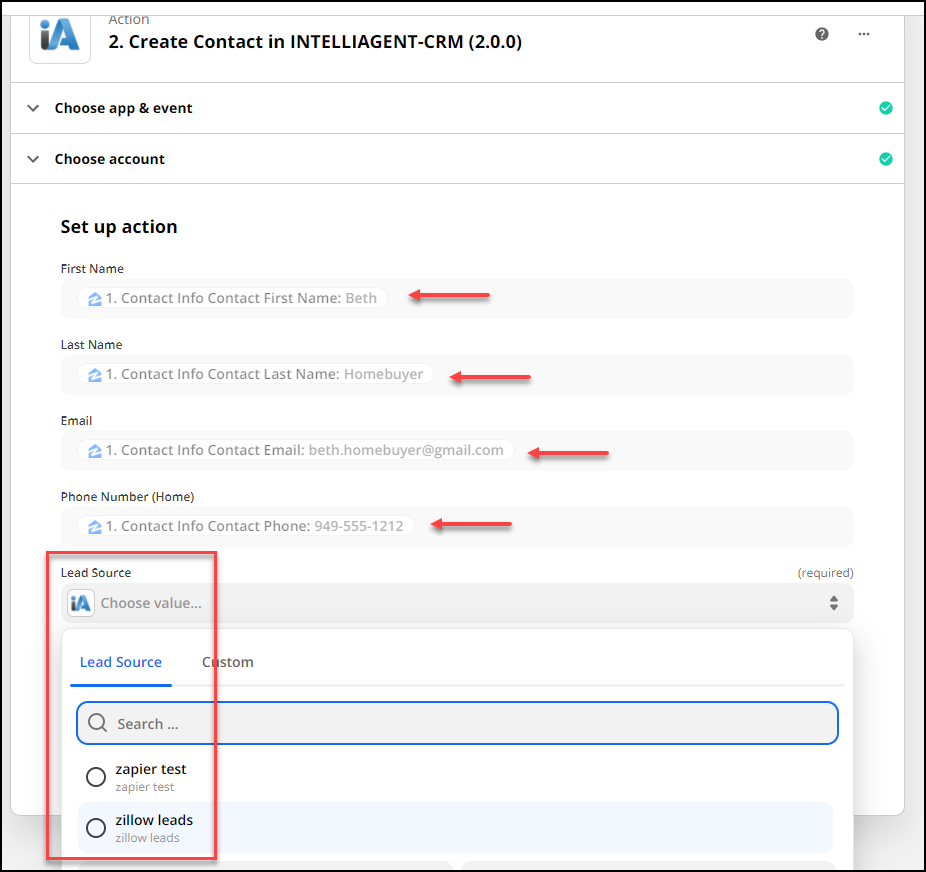
Map each of the iA fields to grab the field from Zillow in the dropdown as shown in the screenshot below.
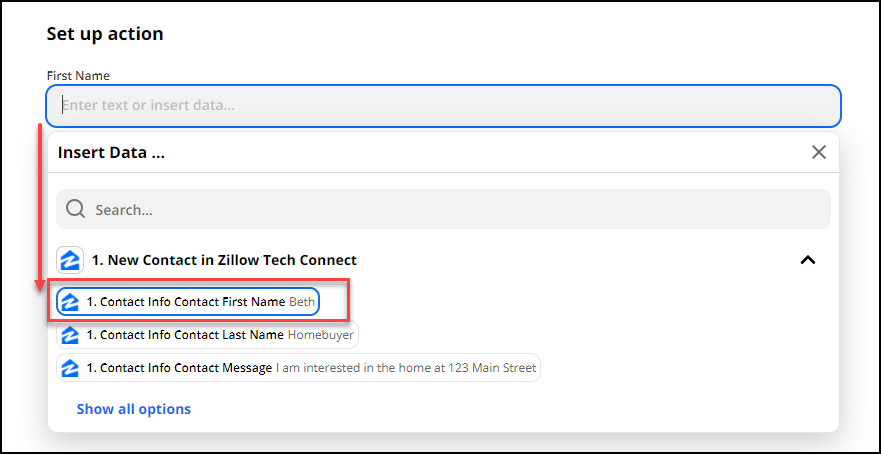
Complete mapping each field
**Important** for the Lead Source field use only the Lead Source tab to select from lead provider forms created first in iA. Custom lead source fields are not available at this time.
Note, if you have not yet created a lead provider form iA, that's ok! We can quickly do that by going back to your iA workspace and following the steps here. Once you have completed setting up your lead provider form for Zapier go back to Zapier and click refresh to select from the Lead Source dropdown shown in the screenshot below.
Click Continue
Next, click Test & Continue
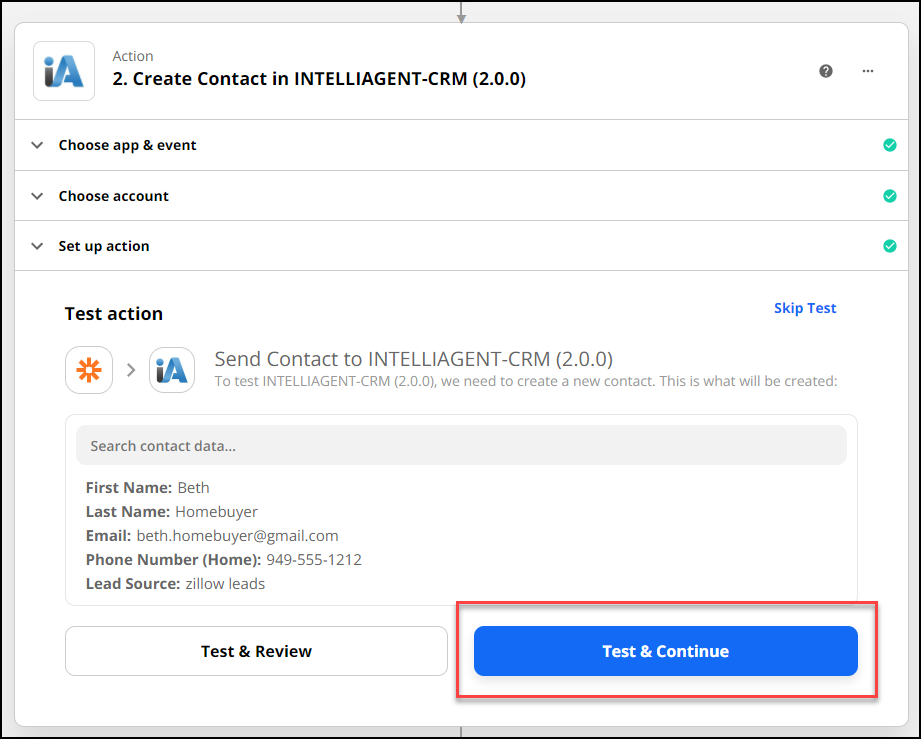
Once this test is sent you will see your test lead into your CRM Contact Module.