If you are on a team use the option of First to Claim or Round Robin lead routing. Follow the steps below on how to set this up.
- First to Claim Lead Routing Setup
- Round Robin Lead Routing Setup
- Areas where lead routing can be triggered
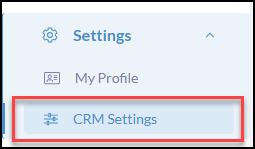
Click Settings from the iA Menu
Click CRM Settings
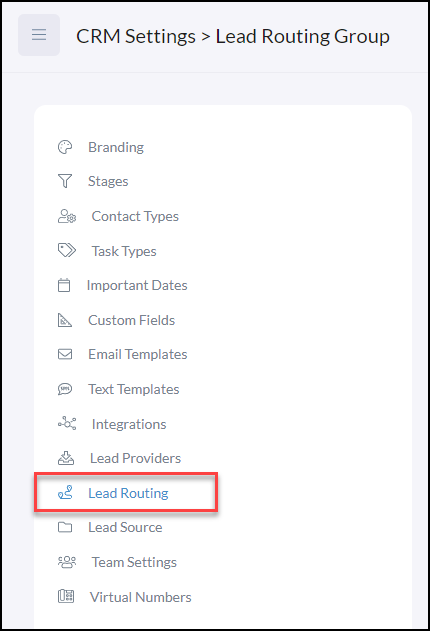
Click Lead Routing from the available menu of tabs
Click + Add Lead Routing Group

Choose a Group Name to easily find it in the two areas below where lead routing is available.
- Website Lead Routing
- Lead Provider Lead Routing
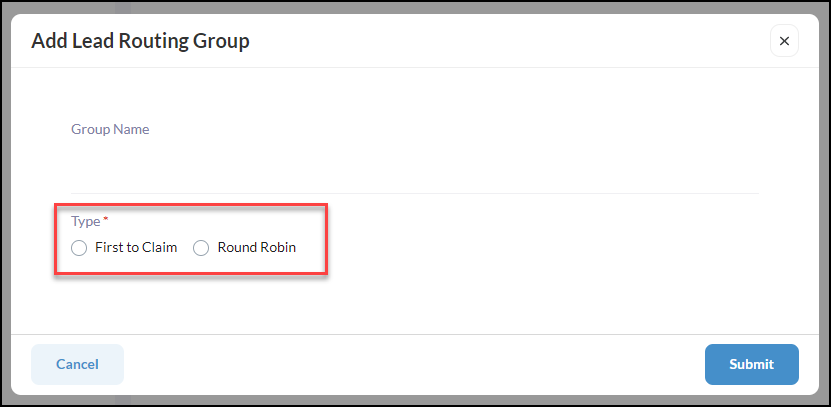
First to Claim Lead Routing
How First to Claim lead routing works is leads that come in from Lead Providers or the Website will go directly into each user's Inbox and they will be alerted by email that a lead has come through. Once they access the inbox they will see
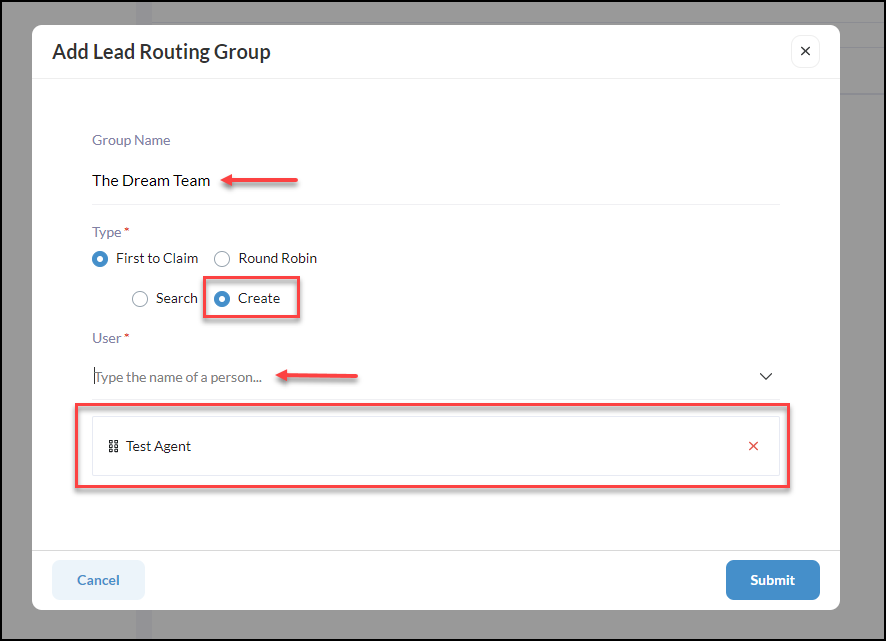
Once the 'First to Claim' Group has been established they will each be able to view the group created in their INBOX from the iA menu, following the steps below.
Click Inbox
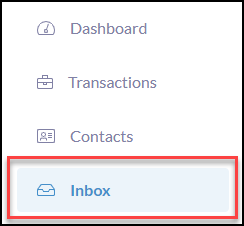
Locate the 'First to Claim' lead routing Group name i.e. The Dream Team

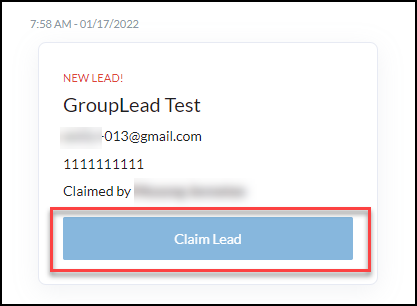
When a new lead comes in everyone in the 'First to Claim' lead routing group will be given a chance to click Claim Lead. Once an Agent claims the lead it will then flag the lead "Claimed By XXXX" and the claim lead button will become disabled.
The Agent that claimed the lead will now see the lead in their contacts to work with.
Round Robin Lead Routing
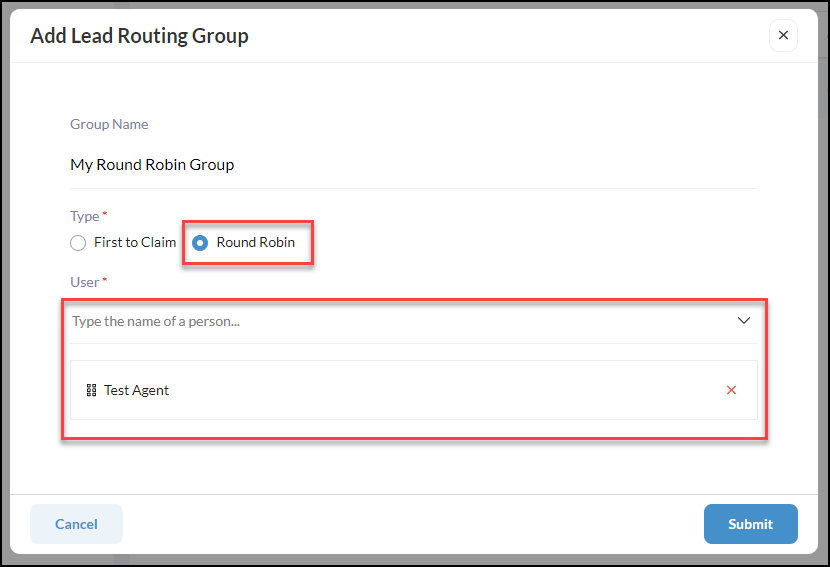
How Round Robin lead routing works is that each new lead is assigned to a different user that is part of the Round Robin group created (adding them to their contacts) until everyone has been assigned the same amount and the cycle then repeats.
Areas Where Lead Routing Can Be Triggered
- Lead Providers lead routing for Zapier and Facebook integrations
- Website Lead Routing
- Lead Generation > Lead Pages