Working with a team? Follow the steps below to create and manage your team page on your website.
- How to Add and Manage Team Members
- How to Add Tags to Team Members
- Add Your Team Page To Your Website
How to Add Team Members to your website Team Page
Click Websites from your iA Menu
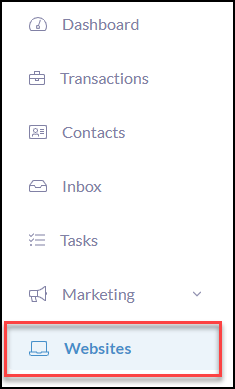
Click the website domain
Click Team in the iA website menu
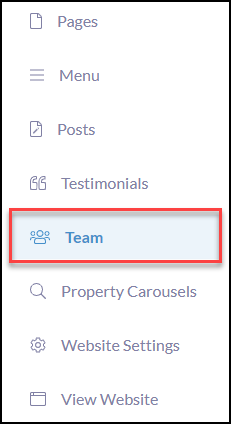
To create a new team member click +Click Team Member

Add all relevant information of your team member including a photo, bio, and contact information.
Adding Tags to your Team Members
Add or create Tags to allow an assembly of Team Members to be placed on relevant web pages.

Now that you have added Tags to your team members you can strategically use these tags to bring team members to any website page(s) and have control of where these are displayed.
To complete this, go to Pages in your iA Menu
Select any page you would like to have your Tagged team members display
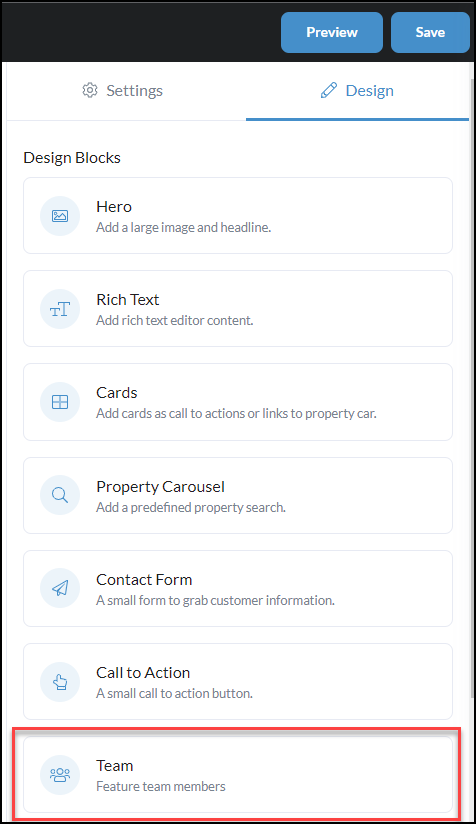
From the Design editor of your website page locate the 'Design Block' Team and then drag n' drop it anywhere into the website page you would like to have these tagged members display.
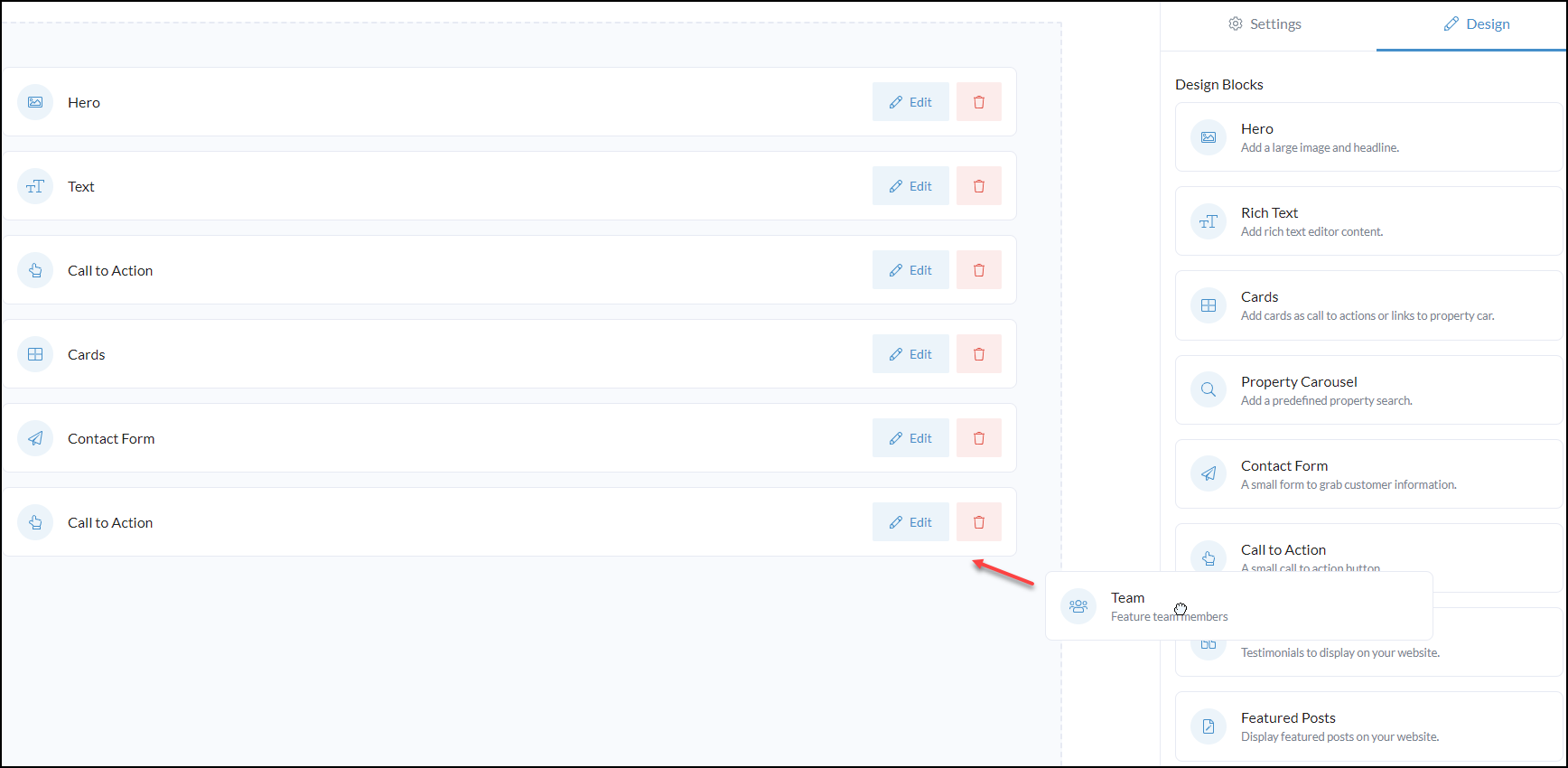
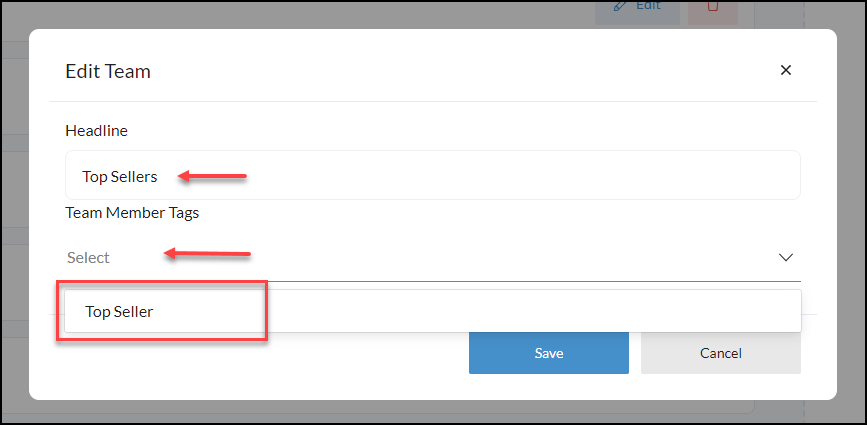
In the Edit Team
Create the Headline you wish to display
Team Member Tags, select the Tag of Team Members you wish to display.
Refresh your website, and locate where you had placed your tagged team members

Once they click on the team member it will display all of their information entered.
Add Your Team Page to Your Website Menu
If you have created team members, the Team page must be added to your website menu in order for consumers to see the team page on the website. To do this follow the steps below.
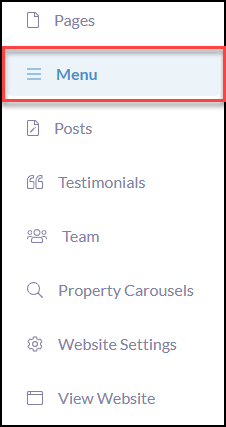
Click Menu from the iA website menu
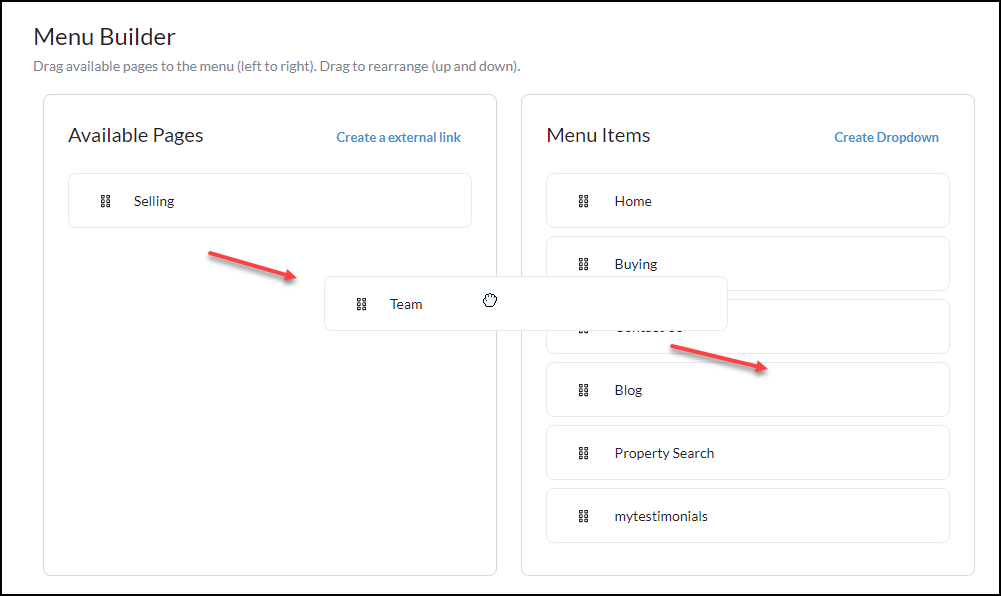
Drag n' drop Team from 'Available Pages' to 'Menu Items'
Click Save Changes
Refreshing your website you will now see Team in the top menu, as shown below.