Hero design blocks sit at the top of a website page and act as a way to introduce the content below it.
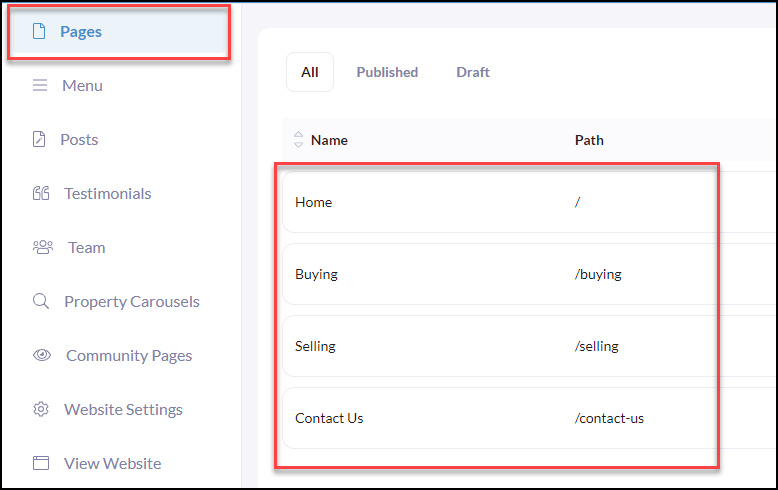
To begin, from your website editor, click Pages and click on the page name you wish to manage.
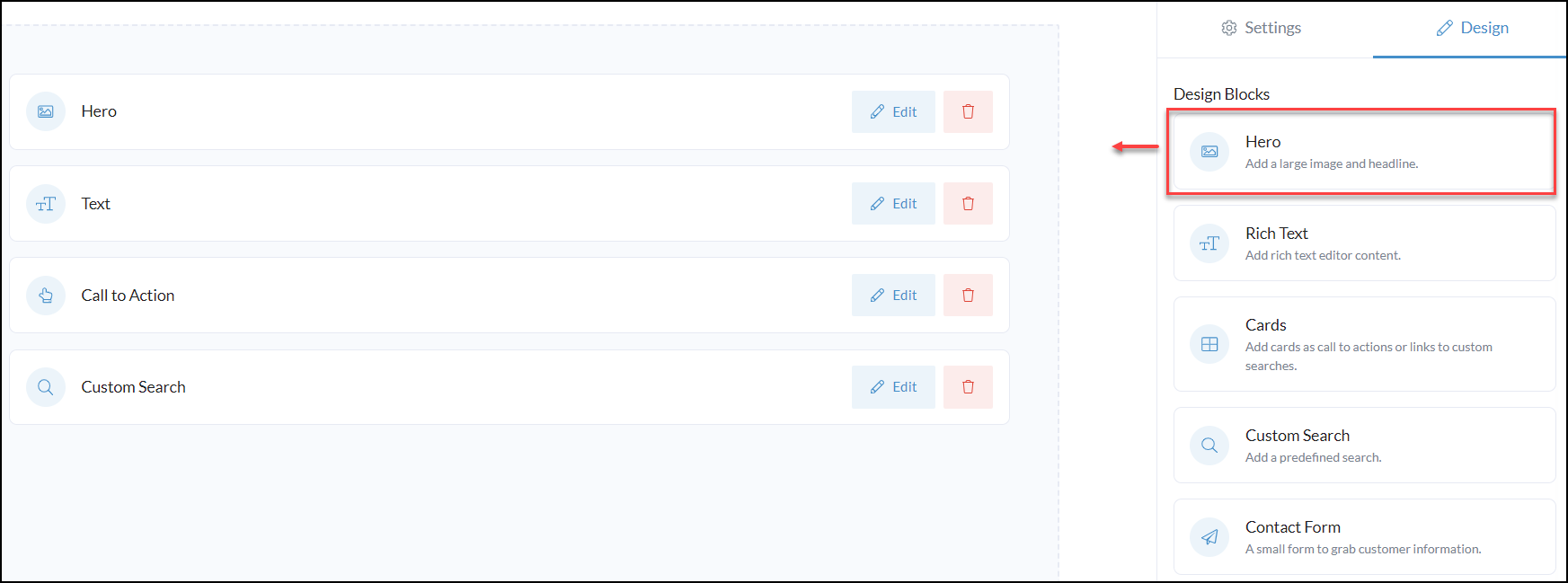
From your website page, 'Drag n' Drop' the Hero design block
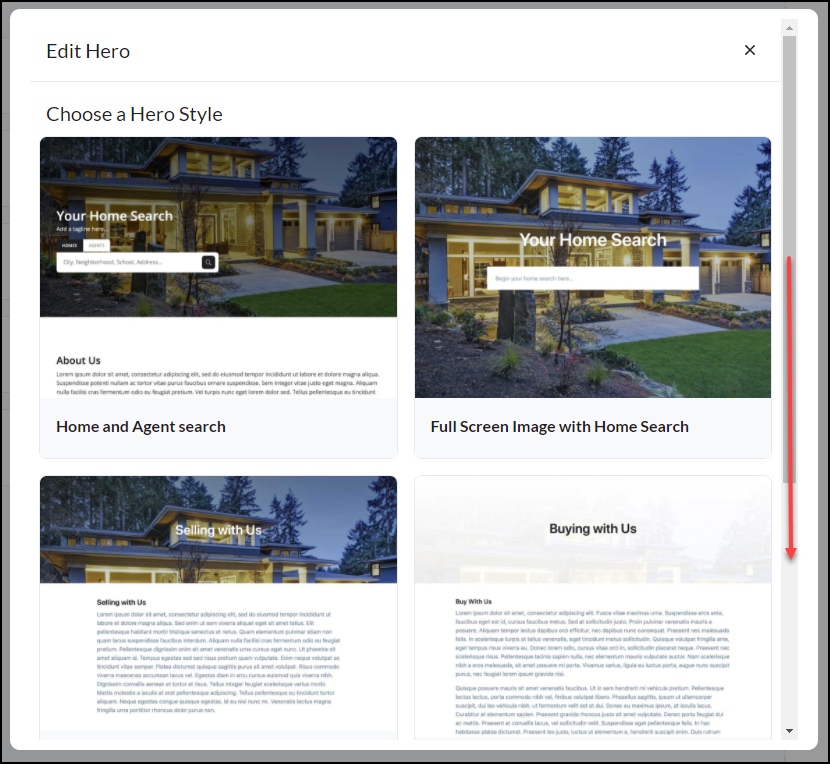
Based upon the page and content, choose the best 'Hero Style' by scrolling through a library of styles to choose from.
Any of the styles that include a home search bar will link directly to the Property Search page of your website.
Next, Enter your Headline
Upload a Background Image by clicking Browse Files or Select from Library
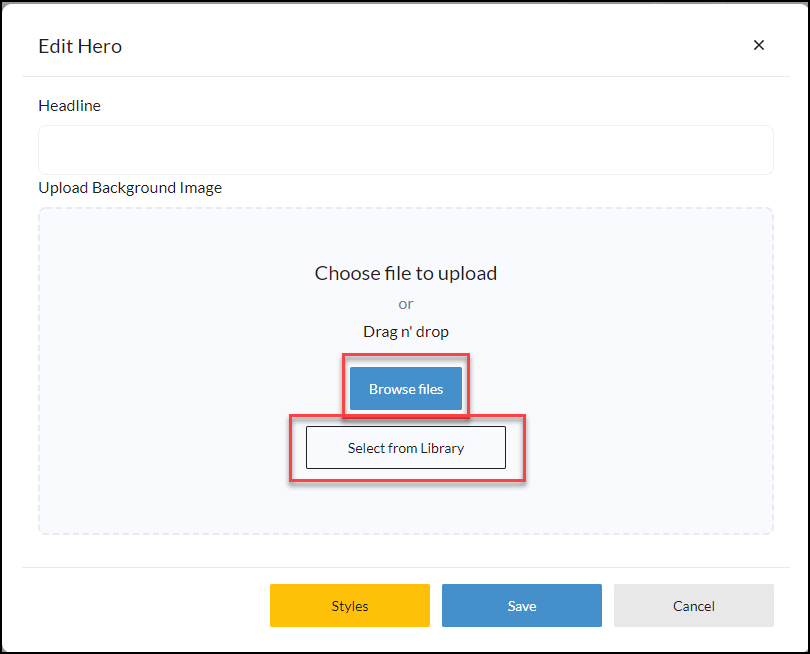
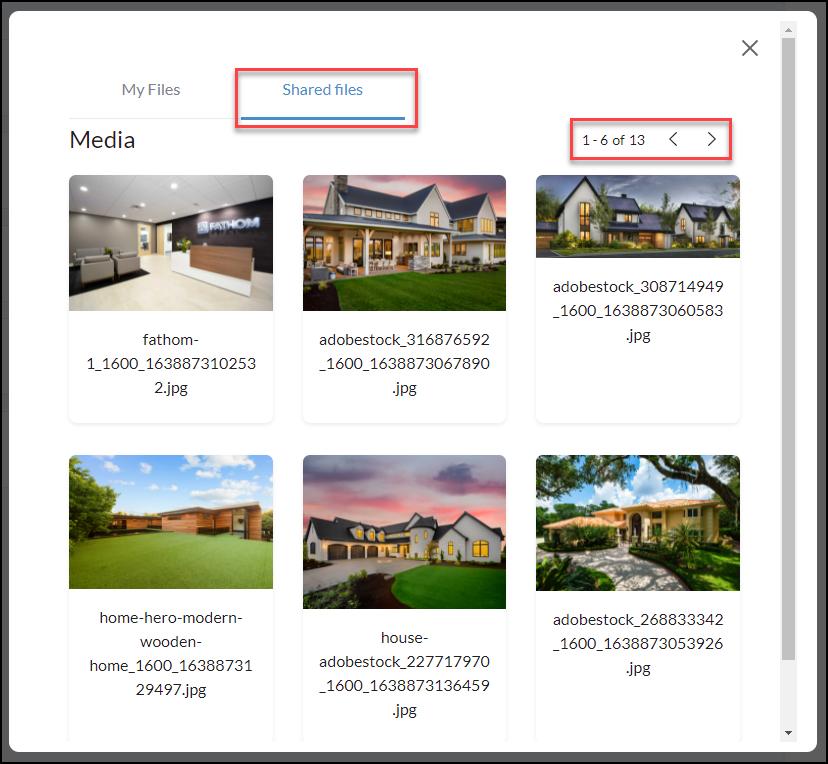
Select from Library
Take advantage of 'Select from Library' with 13 Shared Files that are great quality and ready to use!
If you choose to 'Browse Files' and use your own images you will notice that those will begin to store in your library of My Files to choose from any time.
Transparent Header
When creating new custom pages and adding in the Hero Design Block you will notice that it has defaulted to a white header. As shown below.
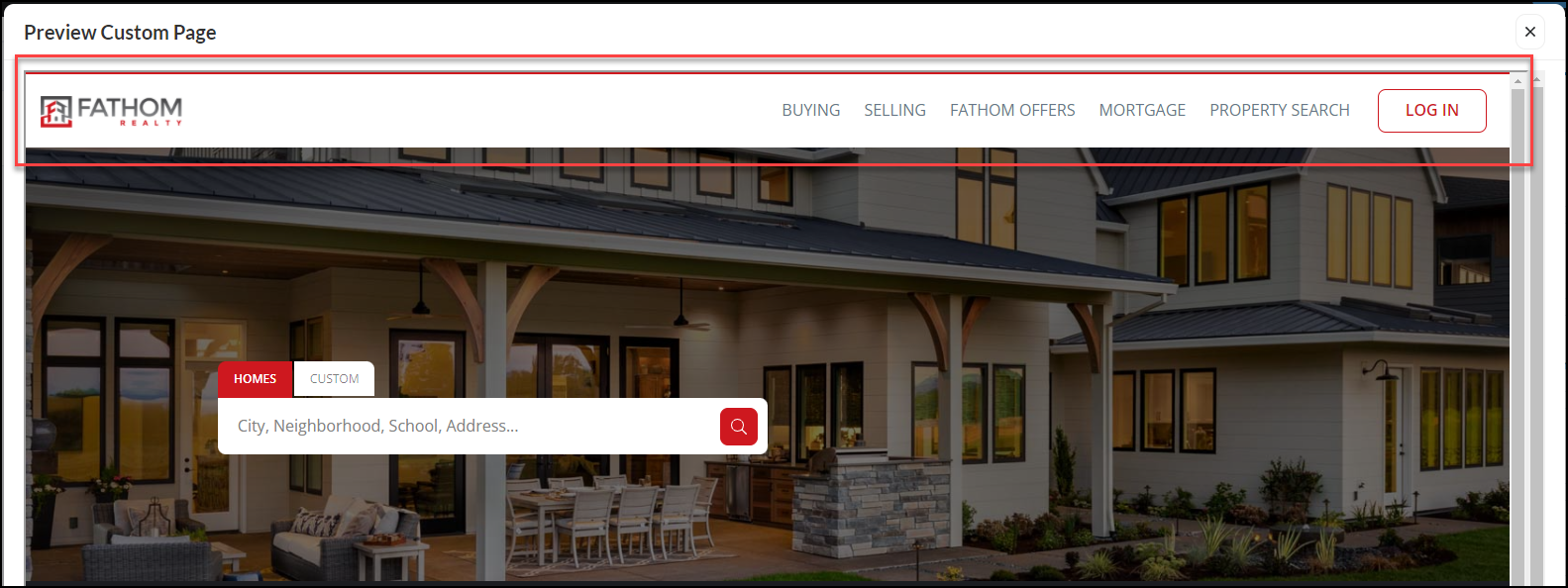
To remove the white header on your website and allow the background photo to merge into the header use the Transparent Header option within your page settings. To do this use the steps below.
From your page, click Settings
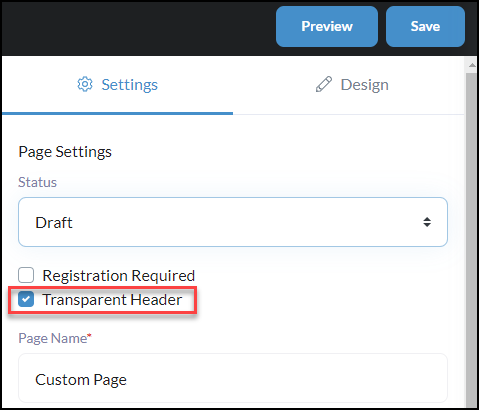
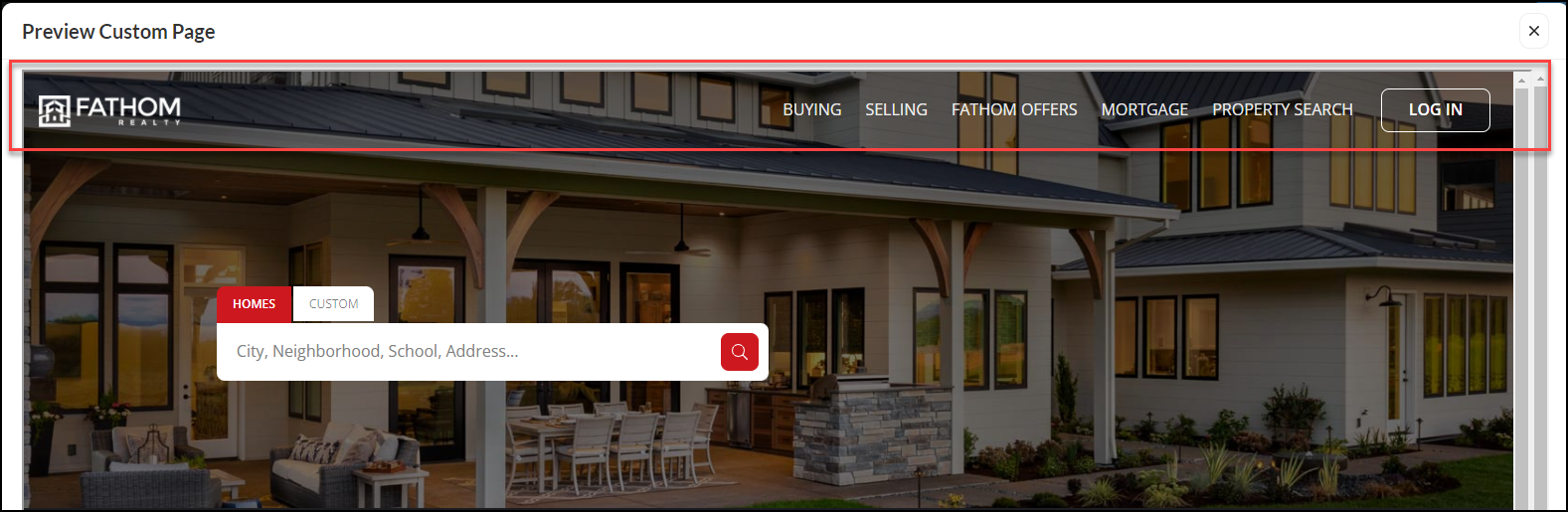
Once you have selected the Transparent Header you will see below the background image is now merged up into the header.
SAVE PAGE CHANGES!!
Once all updates and changes are completed, click Save in the top right-hand corner. If you leave the page without clicking save all of your hard work will not save.
You can also use the Preview to view how your page is going to look.