Tags are a free-form categorization to add descriptive terms to contacts to group your contacts into marketing segments based upon these tags.
Creating Tags for Contacts
There are 3 ways to create Tags for your contacts
1. When creating or editing a contact
2. When Importing a contact
3. When Bulk Updating Contacts from the contact list.
For any of the 3 methods above begin by clicking Contacts from your iA Menu

Create Tags When Creating or Editing a Contact
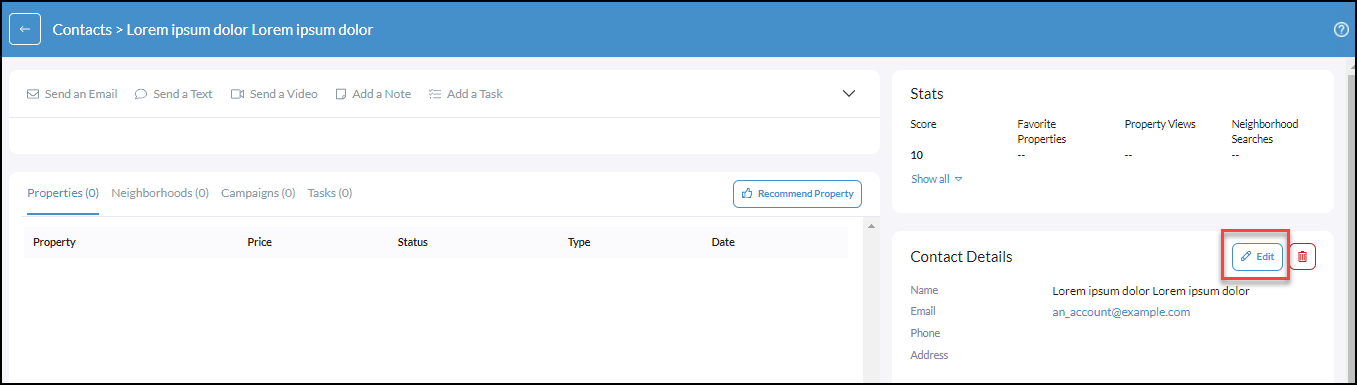
To create a new Tag go to 1. 'Create Contact' from the contact list or click 'Edit' from within an existing contact profile, as shown below.
1. From lists of contacts click 'Create Contact'

2. From Contact Details click 'Edit'
Scroll down to CRM Details and locate the field 'Tag'
Next, in the Tag field begin typing in the desired Tag name which will drop down a Create "XYZ".
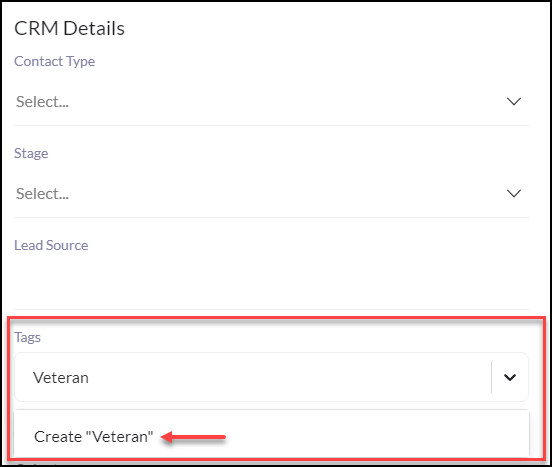
The newly created tag will then be stored where you can select it from the dropdown for other contacts.
Click Save
Adding Tags through Contact Import
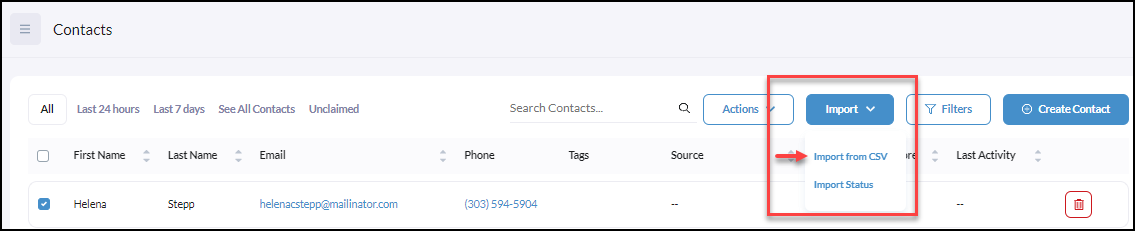
Click Contacts from the iA menu
Click Import
Then click the dropdown Import from CSV
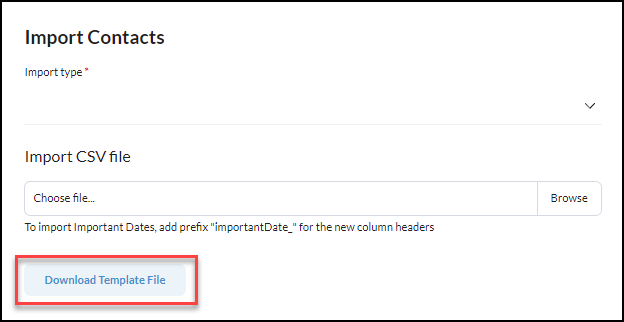
From Import Contacts click Download Template File
If you are using your own custom CSV file be sure to add a column labeled Tag
From the Import Template - Create or add tags under the column labeled Tag.
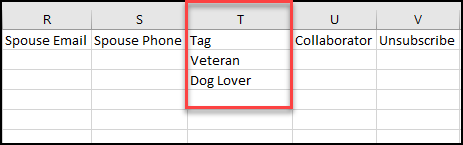
Adding or updating Tags in bulk
Once you have clicked Contacts from the iA menu
Click the checkboxes next to the contacts in the list you wish to update Tags for.
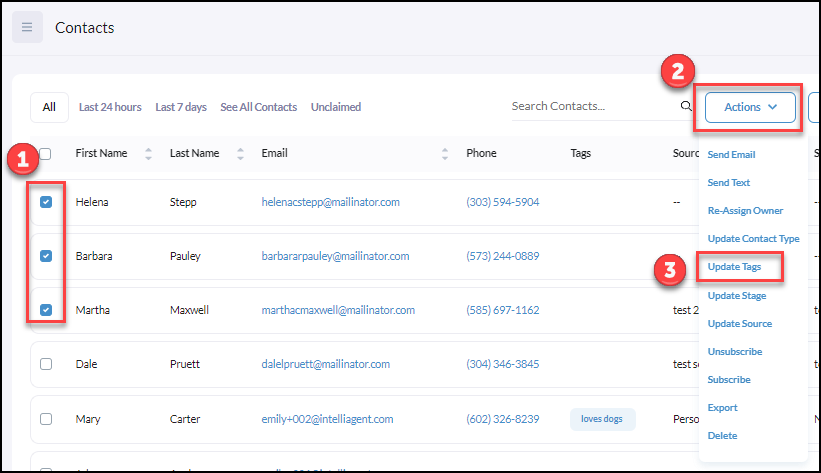
Next, you will be able to Add or Remove tags in bulk
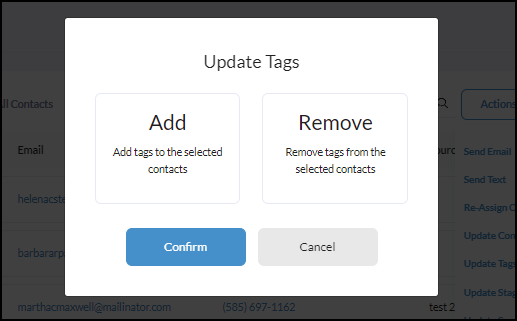
Click Add to create the new Tags and update in Bulk
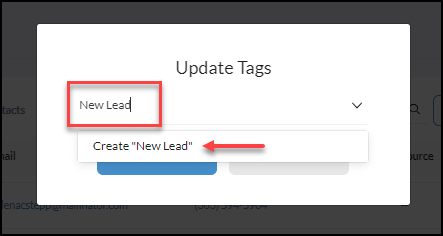
Click Confirm to complete the update
Or click Remove if you are wanting to remove any currently attached Tags to contacts.
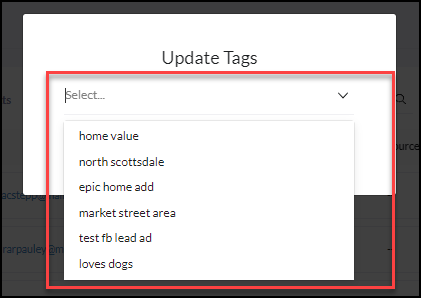
Click Confirm to complete the update