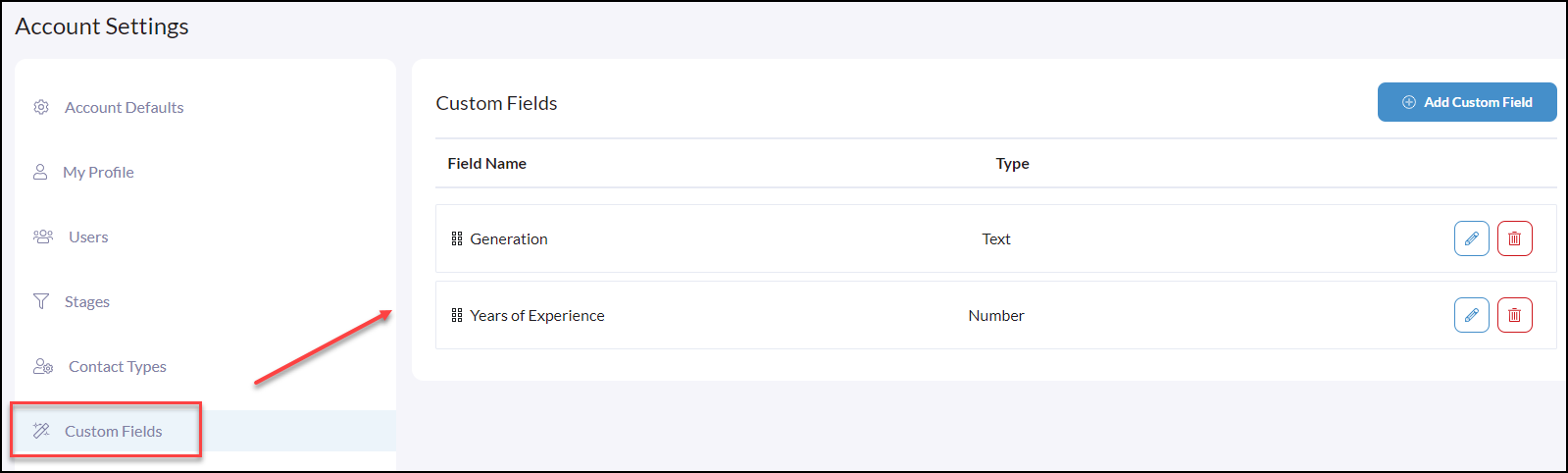
Custom Fields can be added to the CSV files when importing contacts.
- Click Import Contacts
- Click Import CSV
- Click Download Template File or you can follow the same steps in a custom file already created.

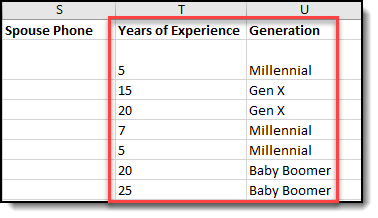
Open the CSV File to add your contact information and add any additional Custom Fields Columns you want included, as shown below.
Click Next Step on the lower right hand

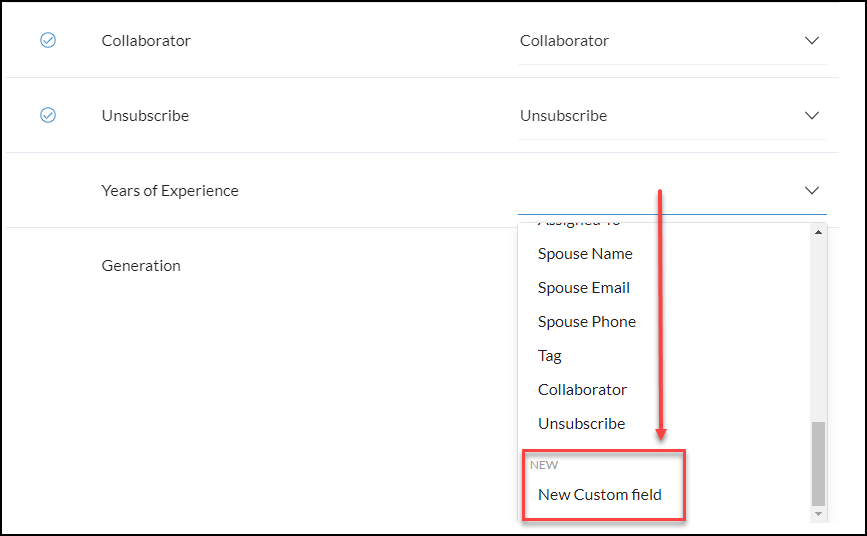
From the Match Fields screen, scroll down to the new Custom Field, in this case, "Years of Experience" and "Generation" in the drop-down select New Custom Field.
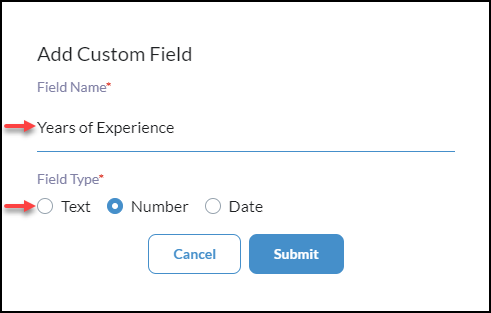
Repeat the Match Fields process for any new Custom Fields that are not mapped. The checkmarks next to each field are good guidelines to follow what has been matched or needs to be matched.

If these Custom Fields were not created in your CRM Settings prior to the import they will automatically be created and will be visible in the Custom Fields section of the account settings, as shown below.