To add a Google Analytics ID or Facebook Pixel ID
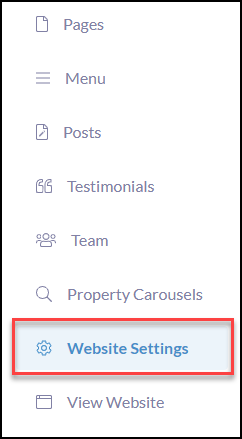
Click Website Settings
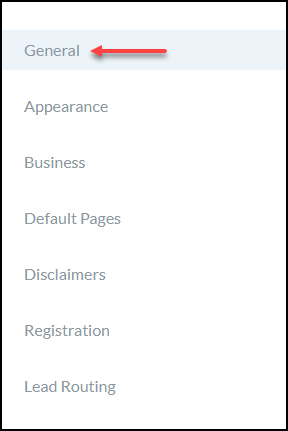
Click General
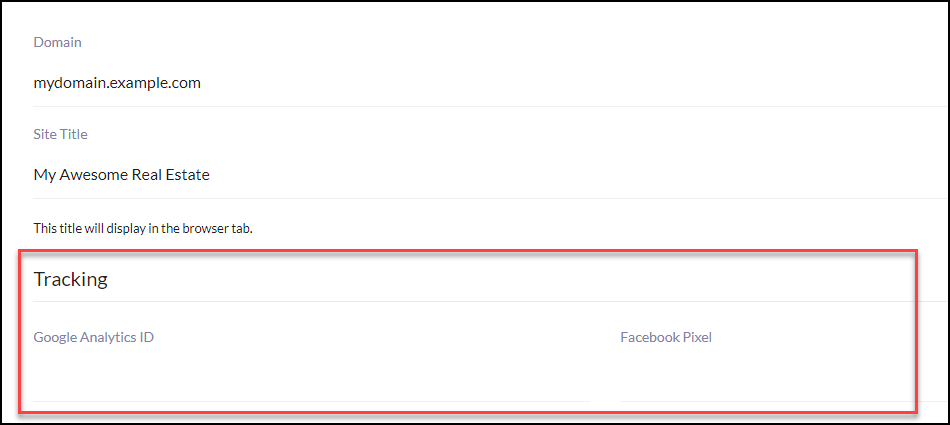
Scroll down to Tracking
Assistance with Locating Your Google Analytics ID
Google Analytics ID: Log in to your Google Analytics account and click on the ADMIN tab. Open the TRACKING INFO section and click on TRACKING CODE. From there, your TRACKING ID is the number beginning with "UA."
- Need additional Google Analytics Support? Visit Get started with Analytics - Analytics Help
Assistance with Locating Your Facebook Pixel ID
Facebook Pixel: This is an ID you place on your website to collect data tracking conversions from Facebook ads. DO NOT ENTER FACEBOOK CODE SCRIPT AS THIS CAN CAUSE ISSUES WITH THE WEBSITE.
Collecting this data helps to further:
- Measure ad performance.
- Optimize your Campaigns.
- Build better Facebook ads
- Build targeted audiences for future ads.
How to create a Facebook Pixel and add it to your website.
-
-
- From your Facebook Events Manager, click the hamburger icon (≡) in the top left and choose Pixels.
- Click the green Create a Pixel button.
- Name your pixel, enter your website URL, and click Create.
- Once you obtain the Facebook Pixel ID you will enter this into the FACEBOOK PIXEL field as shown in the screenshot above.
-