intelliAgent has the ability to connect your privately-owned domain to the website that intelliAgent provides. Follow the 2 step instructions below on how to connect this.
Step 1: connecting your website to your vanity domain
In intelliAgent, update your domain settings to connect to your website.
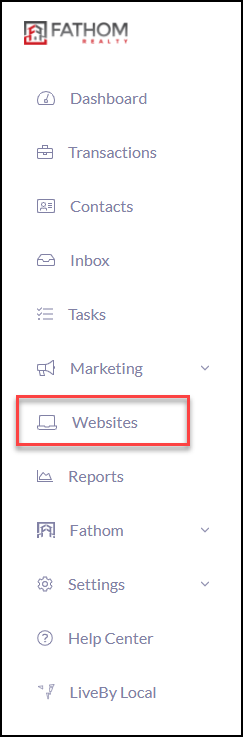
To locate this, click Websites from your intelliAgent menu
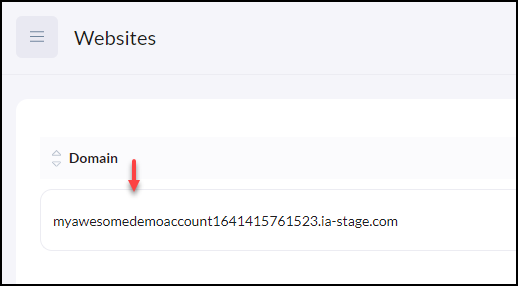
Click the intelliAgent website domain
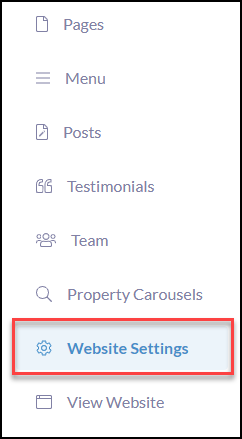
Click Website Settings
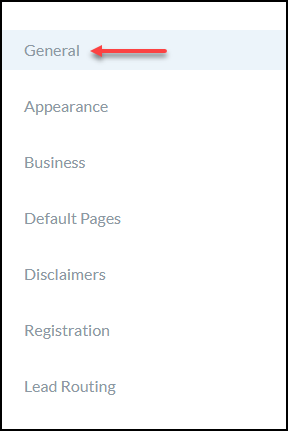
Click General
Domain General Settings and Activation
You will be required to control the Activation button for your website to be live.
- Organization Domain will be your Fathom Realty subdomain that is assigned to you as default.
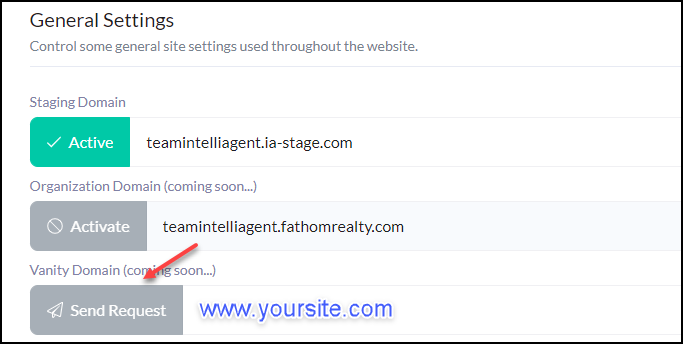
- Vanity Domain Fathom is offering all agents the ability to use a purchased vanity domain, for free. This field is where you can type in your custom domain name and click Send Request to start your approval process which checks for compliance and if an agent MLS agreement is required. PLEASE NOTE YOU MUST OWN THE DOMAIN BEFORE YOU SEND THE REQUEST!
Send Request to use Vanity Domain Steps:
1. From the General Settings > Vanity Domain field, enter your vanity domain - please note, when entering your vanity domain, use the www.yoursite.com format (using the naked domain i.e. https://yoursite.com will not work).
2. Click Send Request
Vanity Domain Approval & Activation
Once you have sent the request for your custom domain name, two approvals will be reviewed.
- The domain name meets all the compliance requirements.
- If you are in an MLS where it requires an individual agent agreement our MLS team will help initiate the MLS paperwork for approval. NOTE THIS PROCESS WILL TAKE LONGER.
Once the approval process has been completed, our MLS team member will notify you via email. Here are your next steps to make the site go live by updating your DNS settings within your domain registrar.
- Please follow these instructions for connecting your Vanity Domain to your intelliAgent Website.
- Click on View Website from the iA menu to verify it has been changed correctly. The update times may vary depending on your domain registrar.
Step 2: connecting your website to your vanity domain
This next step will involve 2 parts in managing your DNS Settings. To begin, log into your domain account to manage the DNS Settings with your domain registrar. This is the website where you originally registered your domain and you will need to make adjustments. **Note that every domain registrar may handle this differently.
In general, from your domain registrar, go to your DNS Settings and locate the CNAME to point your vanity domain.
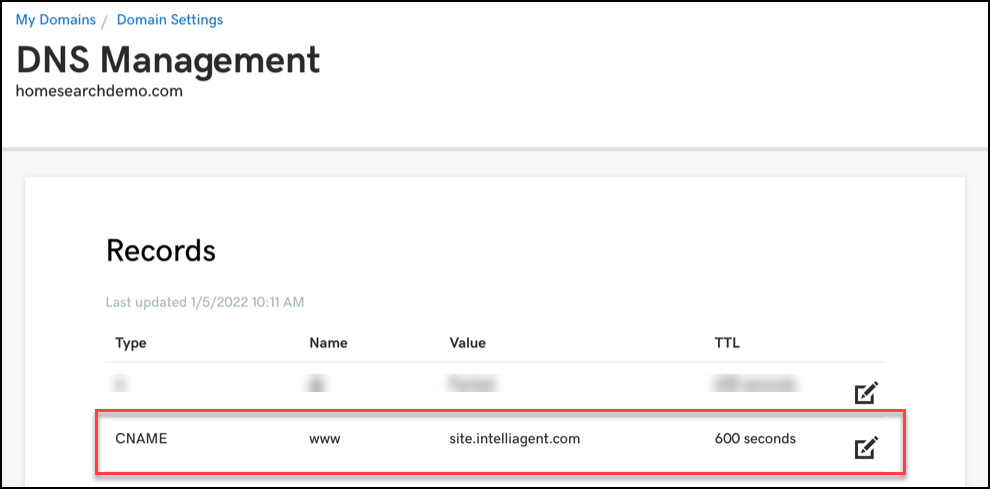
Part 1 - Your CNAME must be updated to point to site.intelliagent.com and not your vanity domain name.
Update the TTL (Time To Live) for how quick you want your domain name update to go live. i.e. 60 sec, 300 sec, 600 sec. Please note, each domain registrar may have limitations on what TTL time you can select.
Please see the screenshot below as reference for managing the CNAME and TTL.
- It may take 24-48 hours for DNS changes to update throughout the Internet.
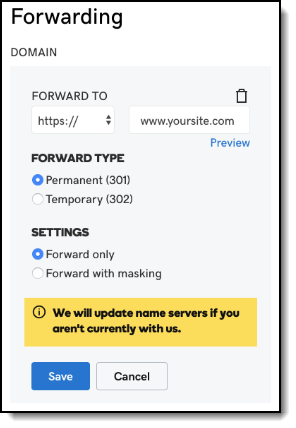
Part 2 (optional) - In instances where a consumer does not type www we need to make one more update to the domain forwarding.
Go to the Forwarding section of your domain and ensure the following settings are in place.
1. Select under 'Forward To' select https//
2. Enter your domain name with the www. For example, www.yoursite.com
Need help with DNS Settings?
Please reach out to your Domain Registrar who is best able to assist you with these settings.
Below are some support links for some commonly used domain providers and their steps.